
WP Debug Toolkit (WPDT) auto-detects the WordPress config and debug log paths on standard hosting setups, so no configuration is needed for most sites. If you’re on a managed host like GridPane, Kinsta, or WP Engine where files live outside the standard WordPress directory structure, navigate to WP Debug Toolkit › Settings › Viewer Settings and scroll to File Paths Configuration to override one or both paths.
This guide assumes WP Debug Toolkit is installed and your Viewer App is set up. If you haven’t done that yet, start with Setting Up the WordPress Error Logs Viewer App before continuing.
When WP_DEBUG_LOG is set to true in wp-config.php, WordPress writes errors to wp-content/debug.log. WPDT reads from this path by default with no additional configuration.
php
// Standard WordPress debug configuration -- no custom path needed
define( 'WP_DEBUG', true );
define( 'WP_DEBUG_LOG', true );  // Writes to wp-content/debug.log
If your site uses this configuration, skip the rest of this article.
WP_DEBUG_LOG PathWordPress supports setting WP_DEBUG_LOG to a file path instead of true:
php
define( 'WP_DEBUG_LOG', '/home/user/logs/debug.log' );
When set this way, WordPress writes errors to that file. WPDT detects this value and automatically reads from that path, provided the path falls within a standard WordPress directory (wp-content/, ABSPATH, or one level above ABSPATH).
For paths outside those roots, such as /home/user/logs/debug.log, WPDT cannot use the WP_DEBUG_LOG value and silently falls through to wp-content/debug.log. To use an out-of-tree path, set it explicitly via the File Paths Configuration in the admin UI, then confirm the override when prompted.
Server-level PHP error logs, which are typically stored in /var/log/ or similar directories, are entirely separate from the WordPress debug.log file. Server PHP logs capture errors from all PHP processes on the server, not just WordPress.
WPDT reads WordPress debug logs only. If you are looking for server-level PHP errors, those require direct server access and fall outside what WPDT provides.
Go to WP Debug Toolkit › Settings › Viewer Settings and scroll down to the File Paths Configuration section. WPDT displays the current status for both WordPress Config and Debug Log, each showing a green Auto-detected badge when WPDT has located the file automatically.
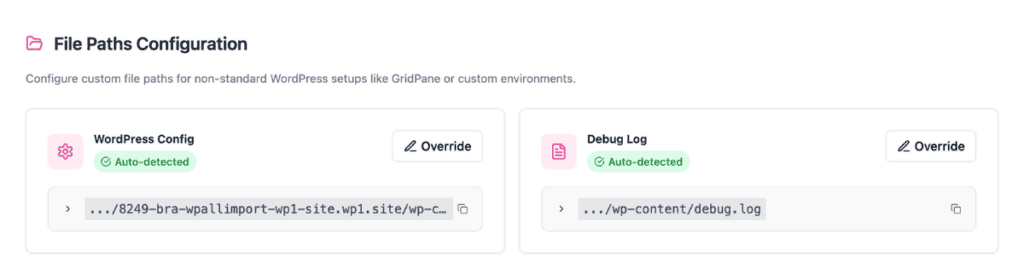
Click Override next to the path you need to change. An input field appears where you can enter the correct path. Enter the path to the file using the conventions shown in the Quick Reference panel.
For GridPane, the correct log path is ../logs/debug.log, one directory above the WordPress root, matching where GridPane writes debug output. For an absolute path from the server root, prefix with /, for example,/var/log/php/debug.log.
WPDT validates the path immediately. A green checkmark and a confirmation message appear beneath the input when the path resolves to a valid, readable file. Note that ~/ tilde-style paths are not supported and will not resolve.
If the path is outside the standard WordPress directory tree, a confirmation prompt appears instead: “This path is outside standard WordPress directories. Confirm the override to continue.” You must confirm before WPDT saves and activates the path.
Once you enter a path, WPDT validates it immediately. A green checkmark and a confirmation message appear beneath the input when the path resolves to a valid file. A banner reading “You have unsaved custom path changes” appears at the top of the section. Click Save Custom Paths to commit the change.
To discard a change and return a card to its auto-detected state, click Reset on that card before saving.
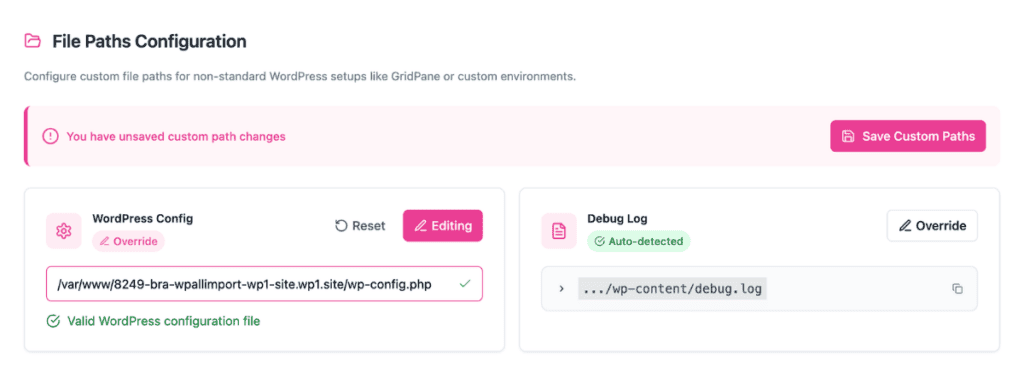
✅ What You Should See: The WordPress Config card now shows a pink Override badge in place of the green Auto-detected badge. The path you entered appears in the input field with a green checkmark confirming the file is valid. After clicking Save Custom Paths, the banner clears, a notification that your change was successful flashes, and your custom path is active.
When you save a log path change via File Paths Configuration, WPDT automatically updates the Viewer App’s config.php with the new path. The Viewer begins reading from the updated location immediately, with no manual reinstall required on your end.
If the automatic update fails silently, for example, if the Viewer directory is not writable at the time you saved it, the Viewer may continue reading from the old path. In that case, navigate to WP Debug Toolkit › Overview and click Repair or Reinstall Viewer. This rewrites config.php with the current resolved path.
| Setting | What It Does |
|---|---|
| WordPress Config | Sets the path WPDT uses to locate wp-config.php. Override this when your host stores the config file above the WordPress root. GridPane, for example, places it one directory up, making ../wp-config.php the correct value. Defaults to auto-detected on standard setups. |
| Debug Log | Sets the path WPDT uses to read and display your error log. Override this when your host writes logs to a non-standard location, such as /tmp/debug.log. Defaults to auto-detected on standard setups. |
wp-config.php ConstantsFor deployment-wide defaults such as version-controlled repos, staging environments, or multi-server infrastructure, where you want a path baked in without touching the admin UI, define DBTK_CONFIG_PATH and DBTK_LOG_PATH in wp-config.php.
php
// Add to wp-config.php to set deployment-wide path overrides
// Constants take priority over paths set via the admin UI

define( 'DBTK_CONFIG_PATH', '/path/to/wp-config.php' ); // Path to wp-config.php
define( 'DBTK_LOG_PATH', '/path/to/debug.log' ); // Path to the debug log fileWPDT resolves the log path in the following order:
| Tier | What Wins |
|---|---|
| 1st | Custom path set via File Paths Configuration in the admin UI, if saved and valid |
| 2nd | DBTK_LOG_PATH constant, if defined and valid |
| 3rd | WP_DEBUG_LOG string value, if set to a file path |
| 4th | Default: wp-content/debug.log |
The first match wins. A path saved in the admin UI takes precedence over DBTK_LOG_PATH. If you define the constant and later save a different path via File Paths Configuration, the admin UI path takes precedence.
The two configuration methods serve different roles. Use DBTK_LOG_PATH in wp-config.php when you want a deployment-wide default that does not depend on the database, such as version-controlled repos, staging environments, or multi-server setups where the admin UI has not been configured.
Use the admin UI when you want to set or change the path on a specific site without editing a file, and when that site-level setting should take priority over any constant defined lower in the stack.
Likely cause: The host stores the debug log in a location WPDT cannot auto-detect. Additionally, some managed WordPress hosts redirect error output entirely to their own log aggregation systems, meaning WPDT may not be able to read those logs regardless of the path configuration. Check your host’s documentation to confirm that standard WordPress debug logging is supported before troubleshooting the path.
Fix: Navigate to WP Debug Toolkit › Settings › Viewer Settings and scroll to File Paths Configuration. Click Override next to Debug Log and enter the path your host uses for debug output. Check your host’s documentation for the exact log location. For GridPane, the confirmed config path is ../wp-config.php.
Likely cause: The debug log file does not yet exist at that location. WordPress writes to the log only when an error occurs, so a newly configured path on a quiet site will produce an empty view.
Fix: Trigger a page load on the site, then return to the Error Logs view to check for new entries.
Likely cause: The automatic Viewer App config update that runs when you save a path change failed silently. This can happen if the Viewer directory was not writable at the time of the save.
Fix: Navigate to WP Debug Toolkit › Overview and click Repair or Reinstall Viewer. This rewrites the Viewer’s config.php with the current resolved path. If the Viewer then shows the correct entries, a permissions issue in the Viewer directory caused the initial update to fail.
No. WPDT auto-detects both the WordPress config path and the debug log path on standard hosting setups. Custom paths are only needed when a managed host stores files outside the standard WordPress directory structure.
Yes. The / prefix sets an absolute path from the server root. Use this when the relative path conventions do not resolve correctly in your hosting environment.
How to Use the WordPress Error Log Viewer – A full walkthrough of the Error Logs view. Start here to understand how WPDT reads and displays your log file once the correct path is set.
How to Filter and Search WordPress Error Logs – Use the search bar and filter dropdowns to isolate the specific entries you need from your error logs.
Environment and Hosting Detection – How WPDT identifies your hosting environment and what it does when it detects GridPane, WP Engine, or another managed host.
