
When WP Debug Toolkit (WPDT) writes to wp-config.php on a host where the file is set to read-only, it automatically attempts permission elevation: WPDT stores the file’s current permission mode, uses PHP’s chmod() to make the file writable for the duration of the write, applies the change, and immediately restores the original permissions. The entire sequence runs within a single PHP request. Most sites never encounter a situation where elevation fails.
On most hosting configurations, wp-config.php is writable by the PHP process, and WPDT writes to it directly when you toggle a debug constant from the Error Logging card at WP Debug Toolkit › Overview.
On some hosts, the file is set to read-only as a security measure. Without a way to handle this, every debug constant toggle would fail on those hosts, leaving you with a broken toggle and no clear reason why.
Permission elevation is WPDT’s automatic solution. When WPDT detects that wp-config.php is not writable, it attempts to temporarily grant write access using PHP’s chmod(), applies the constant change, and immediately restores the original permission state.
The window during which the file is writable is as short as possible: the entire sequence runs inside a single PHP request, and WPDT restores the original mode whether the write succeeds or fails.
WPDT runs the following four-step sequence whenever it detects that wp-config.php is not writable:
chmod() to change the file to a writable mode (e.g., 0644) for the duration of the write operation.wp-config.php.The file is writable only for the duration of the write operation. WPDT always restores the original permissions, regardless of whether the write succeeded or failed.
When elevation works: WPDT’s chmod() call succeeds when the PHP process owns the file or has sufficient filesystem access. This covers most shared hosting, VPS, and dedicated server environments where the web server user owns the WordPress files.
When elevation fails: Three conditions prevent elevation from succeeding.
wp-config.php is owned by a different system user: chmod() requires file ownership or root privileges. chmod() can solve, regardless of what the file’s permissions appear to show. chmod() call even when the PHP user owns the file. When elevation fails, the toggle does not hard-fail. WPDT instead saves your selection to the WordPress database and shows a warning instead. The constant itself is not written to wp-config.php, so the underlying debug behavior does not change until you resolve the permission issue or use the manual fallback below.Go to WP Debug Toolkit › Site’s Health. The Config Permissions card loads automatically and reports the current writability status of your config file.
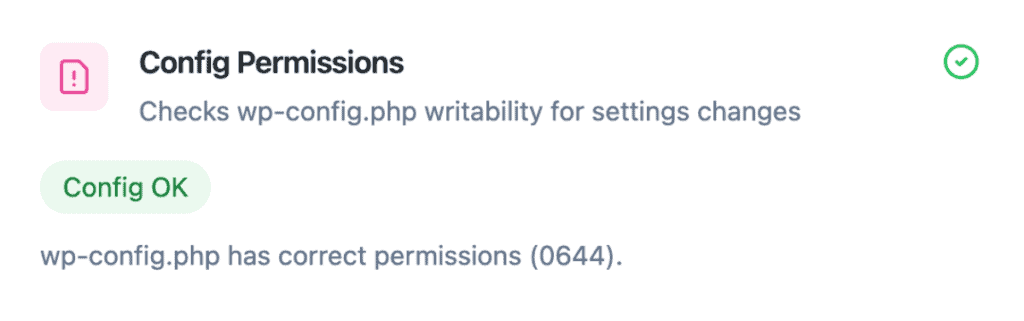
WPDT runs the elevation test as part of loading the page. If wp-config.php is not directly writable, WPDT attempts a chmod() test, checks the result, and immediately restores the original permissions. No content is written to the file.
A Config OK badge confirms that WPDT can write to the config file, either directly or via elevation.
A Config Not Writable badge means elevation failed and the debug constant toggles will not work until you resolve the permission issue or use the manual fallback below.
To refresh the results at any time, click Run Health Check at the top of the page.
✅ What You Should See: A Config OK badge on the Config Permissions card confirms that the debug constant toggles in the Error Logging card at WP Debug Toolkit › Overview will apply successfully.
| Host | Permission Elevation | Notes | Recommendation |
|---|---|---|---|
| Most shared hosting | Works | PHP typically owns WordPress files. | No action needed. Elevation succeeds automatically. |
| VPS / dedicated | Works | Standard ownership model. | No action needed. Elevation succeeds automatically. |
| GridPane | Works the same as standard hosts | WPDT writes constants to wp-config.php on GridPane, the same as on any other host. Elevation logic applies normally and succeeds as long as GridPane’s wp-config.php is writable by the PHP process, which it is on standard installs. | No action needed in most cases. If your GridPane wp-config.php shows restrictive permissions, check Site’s Health like you would on any other host. |
| Flywheel | Elevation fails silently | The toggle appears to save successfully in the admin UI, but a platform-level lockdown prevents the write from reaching wp-config.php. The constant change does not take effect. | Use Flywheel’s built-in debug toggle, then use WPDT normally for log viewing and monitoring. |
wp-config.php Was Not WritableLikely cause: WPDT attempted permission elevation and it failed. The file is owned by a different system user, the hosting platform blocks modifications at the platform level, or a server security module is blocking chmod(). WPDT saves your selection to the database, but the constant is not written to wp-config.php, so the debug behavior itself does not change.
Fix: Navigate to WP Debug Toolkit › Site’s Health and check the Config Permissions card. A Config Not Writable badge confirms which failure condition applies. If the platform blocks modifications entirely, as Flywheel does, use the manual fallback described below.
If you toggle debugging with WP-CLI’s wp dbtk debug on instead of the admin UI, a failed write returns “Failed to enable debugging. Check wp-config.php permissions.” directly in the terminal. This message is specific to the CLI command and does not appear in the WP Debug Toolkit admin interface.
Likely cause: A caching layer is interfering between the health check and the actual write attempt, or a different security mechanism is active only during live write operations rather than during the health check’s chmod() test.
Fix: Use the manual fallback via SFTP described below, then re-enable all other WPDT features normally once the constants are in place.
This fallback applies to permission-based lockouts, such as a wp-config.php owned by a different system user or blocked by a security module. It will not work on Flywheel, where the lockout is platform-level rather than permissions-level. Use Flywheel’s built-in debug toggle instead.
If permission elevation fails and your hosting dashboard does not offer a debug toggle:
wp-config.php.php
define( 'WP_DEBUG', true ); // Enables WordPress debug mode
define( 'WP_DEBUG_LOG', true ); // Writes errors to the log file
define( 'WP_DEBUG_DISPLAY', false ); // Keeps errors off the public-facing siteAfter enabling debug logging manually, all other WPDT features that depend on log output work normally. The Error Log Viewer reads from the log file regardless of how WP_DEBUG_LOG was enabled. The manual fallback is only needed for the initial wp-config.php write on restricted hosts. Once the constants are in place, WPDT reads from them directly.
No. Flywheel enforces a platform-level lockdown that prevents wp-config.php modifications regardless of file permissions. This is not a chmod() problem that WPDT can work around. To resolve it, use Flywheel’s built-in WordPress debug toggle to enable WP_DEBUG and WP_DEBUG_LOG, then use WPDT normally for viewing logs, monitoring queries, and receiving email alerts.
wp-config.php Remain Writable During Elevation?Only for the duration of the write operation within a single PHP request. WPDT stores the original permission mode at the start of the process and restores it immediately after writing, or immediately after a failure. There is no window where the file stays writable after the operation completes.
WP_DEBUG_LOG Manually via SFTP Rather Than Through WPDT’s Toggles?All WPDT features that depend on logging continue to work normally. The Error Log Viewer reads from the log file regardless of how WP_DEBUG_LOG was enabled. Permission elevation is only needed for the initial write. Once the constants are in wp-config.php, WPDT reads from them directly.
How to Automatically Enable WordPress Debug Mode – Learn more about the constants WPDT manages with its toggle switches.
How to Safely Modify wp-config.php – Learn how WPDT protects your wp-config.php during every write operation, including what happens when a write fails.
Flywheel compatibility – Running on Flywheel? Here’s how to get WP_DEBUG enabled and WPDT working correctly on that platform.
