
WP Debug Toolkit (WPDT) installs wpdebugtoolkit-notifications.php as a Must-Use plugin in wp-content/mu-plugins/ to capture PHP errors at the earliest possible point in the WordPress boot sequence. Because MU-plugins load before any regular plugin runs, WPDT’s error handler is active before the plugin loading system begins. This placement captures fatal errors from plugins that crash during their own initialization, something a standard plugin-based monitor cannot do.
WP Debug Toolkit captures a category of fatal errors that standard WordPress monitoring tools miss entirely: errors that occur before WordPress finishes loading. A plugin that loads during the normal WordPress bootstrap cannot capture initialization-level failures because, by the time it runs, the failure has already occurred and gone unrecorded. The MU-plugin placement solves this.
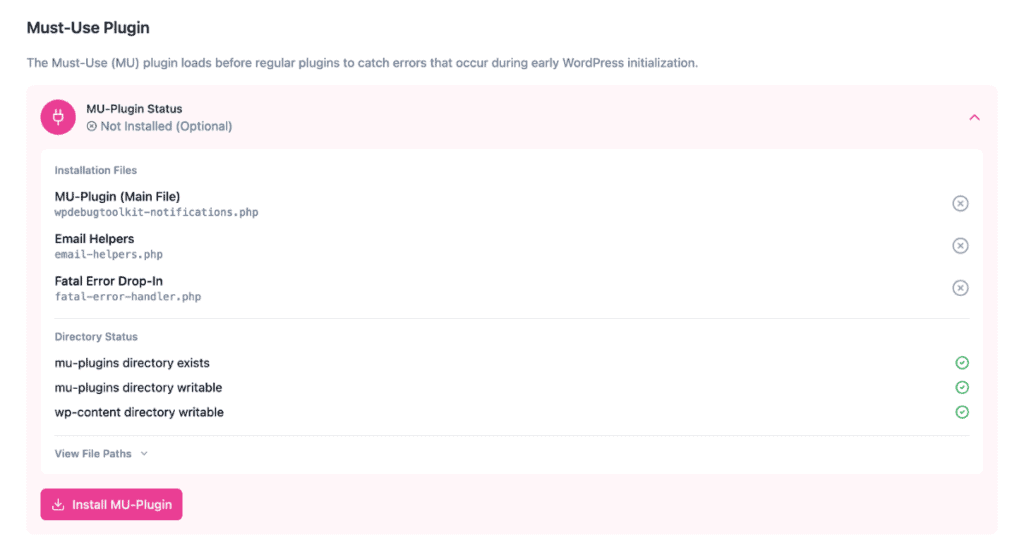
wpdebugtoolkit-notifications.php is the core file of WPDT’s error capture system. WPDT installs it automatically into wp-content/mu-plugins/ alongside email-helpers.php, which handles email composition and delivery. A third file, fatal-error-handler.php, installs separately into wp-content/ as a WordPress drop-in. WPDT manages all three files so you do not install them manually.
The fundamental problem the MU-plugin solves is one of timing. A regular WordPress plugin can only register its error handler after the plugin loading sequence completes. If another plugin crashes during that sequence, the regular plugin never gets control back and cannot intercept the error.
By living in wp-content/mu-plugins/, WPDT’s error handler registers before any regular plugin has executed a single line of code.
The MU-plugin operates across three distinct phases: early boot registration during the WordPress startup sequence, runtime interception of PHP errors, and fatal error capture via a separate drop-in that extends WordPress’s built-in recovery mechanism.
WordPress loads every file in wp-content/mu-plugins/ automatically before it begins processing the active plugin list. WordPress does not allow you to deactivate MU-plugins from the admin. They are always active. This means wpdebugtoolkit-notifications.php registers its error handler before any plugin in your active plugin list has run. If a plugin crashes during plugin loading, the WPDT error handler is already active and captures the error.
When a PHP error occurs at runtime, WPDT’s registered error handler intercepts it before the default PHP error handler runs. The handler then executes a five-step check: the error occurs, the handler intercepts it, it checks whether the error level matches your configured monitored levels, it checks both rate limiting mechanisms, and if all checks pass, WPDT sends an email notification to the configured recipient.
Two rate limiting mechanisms prevent inbox flooding. The per-error cooldown identifies each error by its message and file location, then suppresses repeat notifications for that error type until the cooldown period expires. The cooldown range is configurable from 1 minute to 24 hours, though fatal errors and warnings/notices carry additional hardcoded deduplication checks, 1 hour for fatals and 24 hours for warnings and notices, both independent of your configured threshold. The hourly cap limits how many fatal-error notifications are sent per hour, configurable from 1 to 100 (default 10). Non-fatal errors (warnings, notices) are capped separately by a fixed limit of 5 per hour, so a flood of warnings can never crowd out a critical fatal.
Standard PHP error handlers cannot catch fatal errors. Memory exhaustion, maximum execution time, and parse errors terminate the PHP process before normal error handling runs. WordPress 5.2 introduced its own fatal error handler that executes during the shutdown phase. WPDT installs fatal-error-handler.php as a drop-in that extends this built-in handler.
After WordPress processes the fatal error, including recovery mode, the drop-in delegates to WPDT’s MU-plugin to send a notification. WordPress sends its own recovery-mode email for E_ERROR events. WPDT adds a second notification that includes stack traces and applies rate limiting. Both messages are sent, WPDT does not suppress the WordPress recovery email.
✅ Key Guarantees
| Term / Constant / File | What It Means |
|---|---|
wpdebugtoolkit-notifications.php | The main MU-plugin file. WordPress loads this automatically from wp-content/mu-plugins/ before any regular plugins, placing the error handler at the earliest possible point in the boot sequence. |
fatal-error-handler.php | A separate drop-in installed by WPDT that extends WordPress 5.2’s built-in fatal error handler. Catches memory exhaustion, execution timeout, and parse errors that bypass the main PHP error handler. |
email-helpers.php | A supporting file installed alongside the MU-plugin that handles email composition and delivery logic. |
| MU-plugin (Must-Use plugin) | A WordPress plugin type stored in wp-content/mu-plugins/ that loads automatically before regular plugins. WordPress does not allow you to deactivate MU-plugins from the admin. |
| Per-error cooldown | The minimum time that must pass before the same error, identified by message and file location, can trigger a second notification. Configurable from 60 seconds to 24 hours. Fatal errors also apply a hardcoded 1-hour deduplication check, and warnings and notices apply a hardcoded 24-hour check, both independent of this setting. |
| Hourly cap | The maximum total number of notification emails WPDT sends per hour across all error types. Configurable from 5 to 100. |
| Memory Exhaustion Protection | A built-in feature that allows WPDT to send notifications even when a site exhausts its PHP memory limit, a scenario that prevents most error handlers from running at all. |
| Smart Message Deduplication | Suppresses repeated notifications for the same error until the per-error cooldown expires, preventing notification spam without discarding the error record. |
The MU-plugin installs via a single UI action. WPDT manages all three files automatically, so no manual file placement is required.
Go to WP Debug Toolkit › Settings › Notifications and scroll to the Must-Use Plugin section.
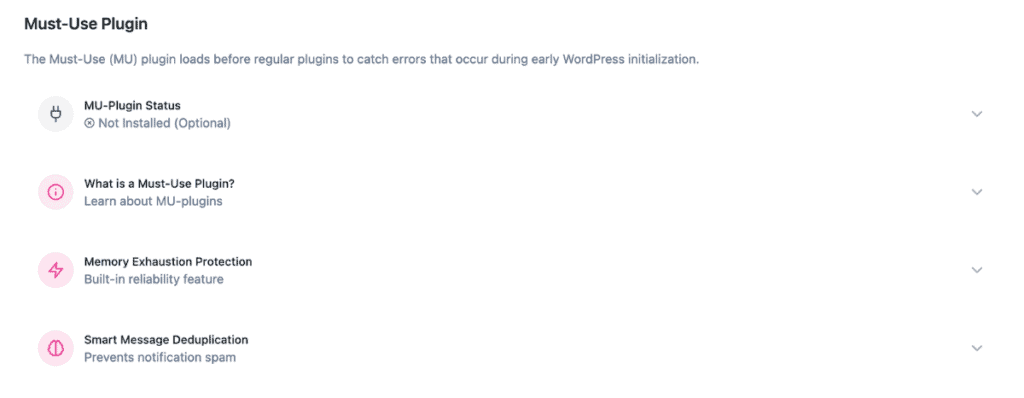
WPDT displays the status of all three installation files and confirms whether the mu-plugins directory exists and is writable. If the directory is not writable, resolve the permission issue before continuing.
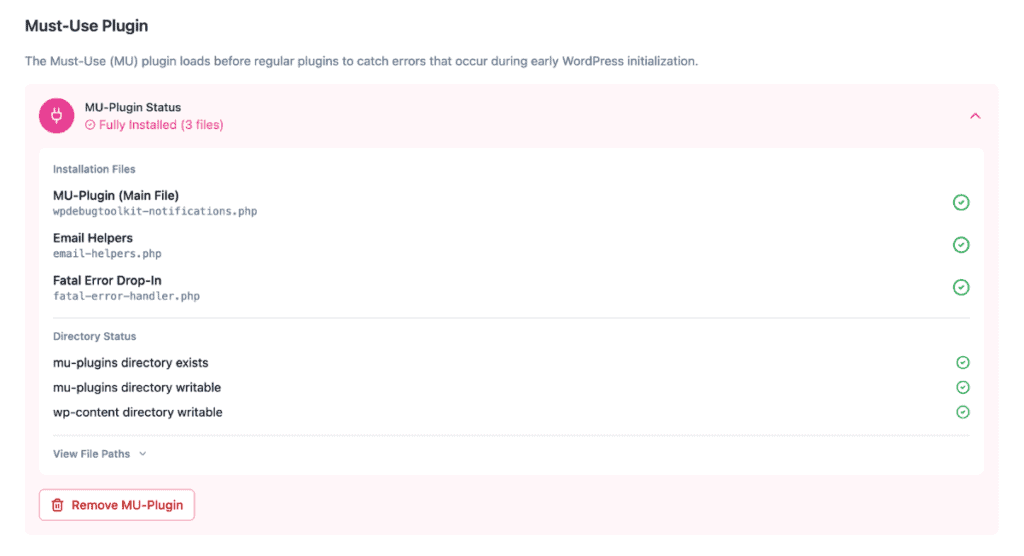
WPDT copies wpdebugtoolkit-notifications.php and email-helpers.php into wp-content/mu-plugins/ and installs fatal-error-handler.php into wp-content/
✅ What You Should See: The MU-Plugin Status changes from “Not installed (Optional)” and each of the three installation files shows a green checkmark confirming it is in place.
Likely cause: The fatal-error-handler.php drop-in may not be installed, or the per-error cooldown is suppressing repeat notifications for an error that fired recently.
Fix: Navigate to WP Debug Toolkit › Settings › Notifications › Must-Use Plugin and confirm all three installation files show a green status. Also, check the Notification History to see whether the error was logged but suppressed by rate limiting.
Likely cause: The hosting environment uses a non-standard file structure or applies strict permission controls that prevent WPDT from writing to wp-content/.
Fix: Create the wp-content/mu-plugins/ directory manually via FTP or your host’s file manager and set its permissions to 755. On managed hosts with restrictive permissions, contact your host or use their provided mechanism for adding MU-plugins.
A regular WordPress plugin can only register its error handler after the plugin loading system finishes running. If another plugin crashes during that sequence, the regular plugin never gets the chance to intercept the error. The MU-plugin loads before the regular plugin system begins, so its error handler is active before any plugin on the active plugin list has executed a single line of code.
No. WordPress 5.2 and later sends its own recovery-mode email when a fatal E_ERROR occurs. WPDT’s MU-plugin adds a second notification that includes stack traces and applies rate limiting. Both emails are sent to you. WPDT simply complements the WordPress recovery flow rather than replacing it.
WPDT continues to function. The MU-plugin adds coverage for errors that occur before regular plugins load. Removing it does not affect the Error Log Viewer, Query Viewer, or any other WPDT feature. You can reinstall it at any time from WP Debug Toolkit › Settings › Notifications.
Email Notifications Overview – Everything behind how WPDT decides when to send an alert, including error level filters, rate limiting, and the full notification flow.
Setting Up Notifications – Start here if you haven’t configured email alerts yet. Covers recipient address, error levels, and cooldown thresholds.
Rate Limiting and Alert History – Understand how the per-error cooldown and hourly cap work together, and where to find the full history of sent and suppressed alerts.
