
Start a query recording from the Database Queries card at WP Debug Toolkit › Overview by clicking Record or pressing Q. WPDT captures every SQL query executed during the active window and stops logging the moment you end the session. For a defined capture window, a timed recording automatically stops after a duration you set between 10 seconds and one hour, so you do not need to manually stop it after reproducing a behavior.
The Database Monitor captures queries in two distinct modes: recording and always-on logging. Understanding the difference helps you choose the right approach before you start.
Recording captures only while active: In the recording mode, WPDT logs queries only during an active recording session. When you stop the recording, no further queries are written to disk. The log reflects exactly the window you chose to capture, which makes recording the right choice for diagnosing a specific page behavior without accumulating data from unrelated requests.
Because WPDT writes query data to encrypted files on disk rather than to the WordPress database, the act of recording does not add overhead to the database activity you are measuring.
Always-on logs every request continuously: The always-on logging mode captures every query on every request without a defined window. This generates significant disk I/O on active sites and is intended only for development environments. See Always-On Logging Mode for the full trade-off and how to enable it.
Navigate to WP Debug Toolkit › Overview and locate the Database Queries card. The card displays the current Mode (shown as Enhanced when the db.php drop-in is active, or Basic when running on SAVEQUERIES alone) and four action buttons: Record, View Queries, Settings, and Clear Logs.
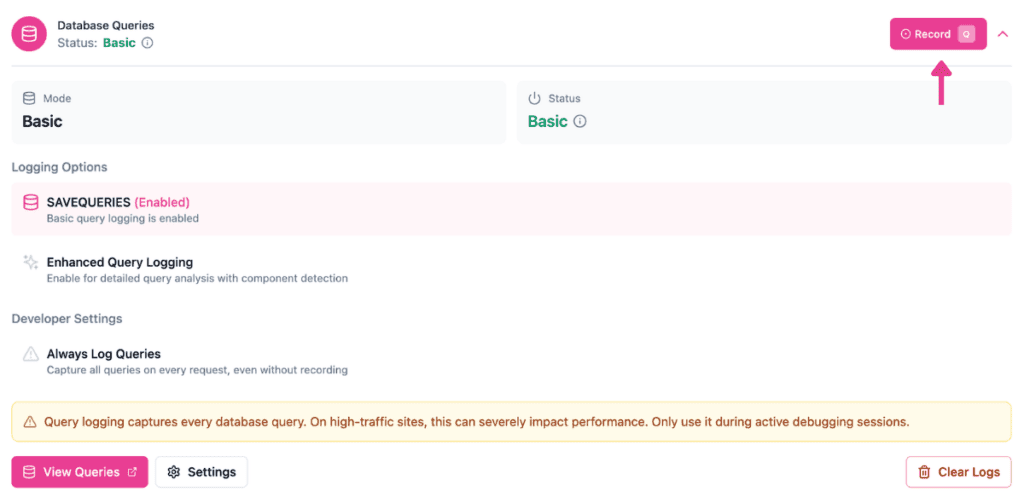
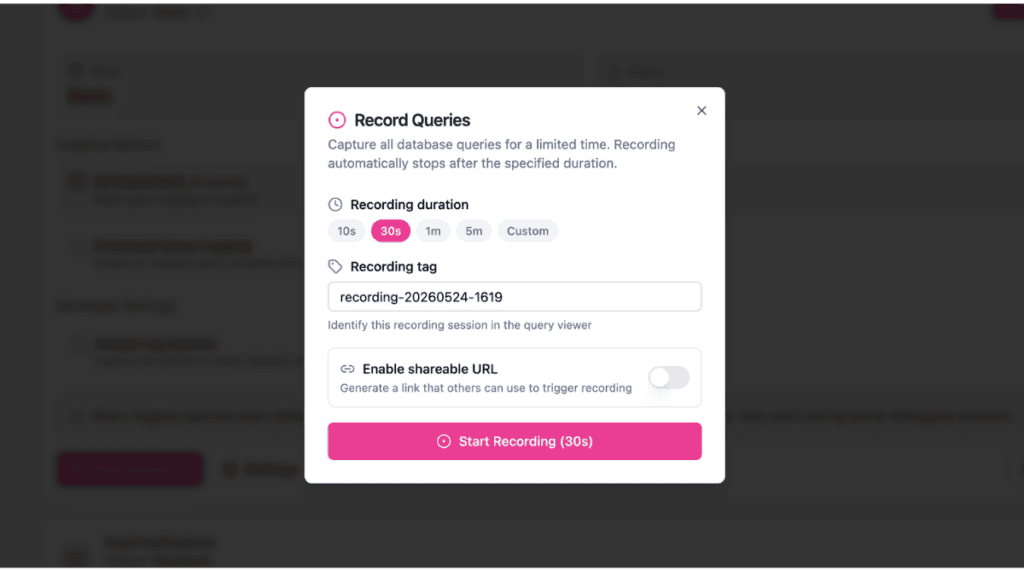
Click Record. WPDT opens the Record Queries dialog before starting any session.
Set three options before starting:
Click Start Recording (Xs). The button label reflects your selected duration. If you toggled Enable Shareable URL ON, the button label changes to Generate URL instead. The dialog closes and the recording begins immediately.
Navigate to the page, trigger the action, or complete the workflow you are investigating. WPDT captures every SQL query that runs through WordPress’s wpdb class during the active window.
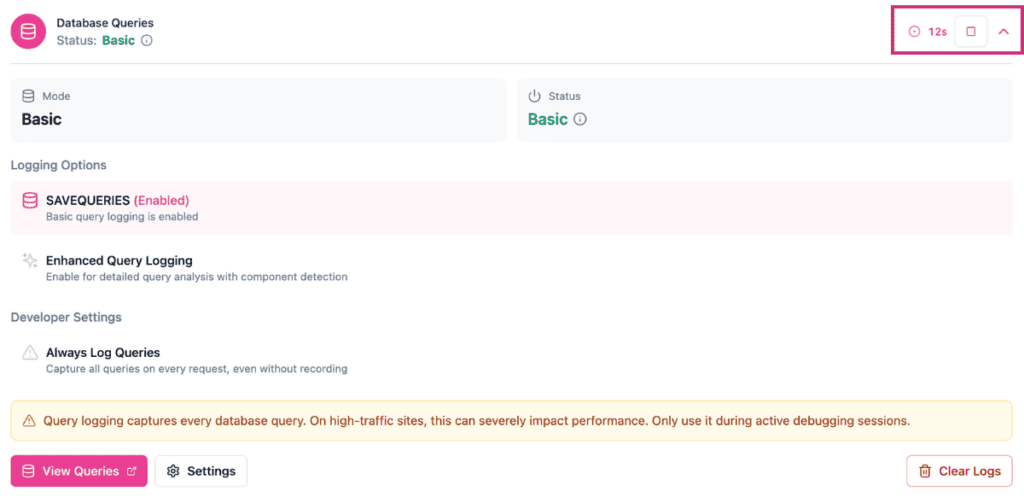
The Database Queries card header displays a live countdown timer and a square stop button in the top-right corner while recording is active. The recording stops automatically when the timer reaches zero. To end the session before the timer expires, click the square stop button.
✅ What You Should See When the session ends, your queries are available in the Query Viewer. To view them, click View Queries on the Database Queries card, then press F to open the filter panel and select your recording tag under Recordings. The query table and statistics header update to show only queries from that session. If you did not assign a tag, you can filter by time range to isolate the recording.
Developers who prefer the command line can start and stop recordings with two confirmed commands:
bash
# Start a timed recording -- duration is in seconds (1 to 3600)
# This example starts a 5-minute recording
wp dbtk query-log start --duration=300

# Omitting --duration starts a recording with a 1-hour safety ceiling
wp dbtk query-log start

# Stop an active timed recording before the timer expires
# Does not disable always-on logging if it was already on before the recording started
wp dbtk query-log stop

# Enable persistent always-on logging (different mode from a timed recording)
# Captures every query on every request with no defined window
# Use in development environments only -- see Always-On Logging Mode
wp dbtk query-log on

# Disable persistent always-on logging
# Does not stop an active timed recording -- use stop for that
wp dbtk query-log off
Note that start/stop and on/off control two distinct modes. Running stop when no recording is active may disable global logging unexpectedly. You should run wp dbtk query-log status first if you are unsure of the current state.
Additionally, –duration expects an integer number of seconds. Passing a human-readable value, such as 5m, will not work as expected. For example, (int)”5m” evaluates to five seconds, not five minutes.
Likely cause: The recording ran, but no page loads occurred during the active window. WPDT captures queries only from requests that happen while the session is open. If no pages were loaded, the log is empty.
Fix: Start a new recording, then load at least one page on the front end or in the admin before the timer expires or you click stop. The Query Viewer empty state reads: “No queries found. Try adjusting your filters or check if query logging is enabled.”
Recording captures queries only during a defined window from when you click Record to when you stop it. Always-on logging continuously captures every query on every request, which generates significant disk I/O on active sites and is not recommended for production. Use recording for most debugging sessions and always-on logging only in development environments where continuous capture is needed.
Yes. Recording is a site-wide, server-side flag, not a browser screen recorder. Every WordPress request that hits the server during the active window is captured. This includes admin pages, front-end pages, REST calls, and AJAX requests. To profile both contexts, load both during the recording period.
One timing note: the request that starts the recording may not log its own queries. Start the session first, then navigate to the page or trigger the action you want to capture.
Always-On Logging Mode – Not working with a defined window? Here’s when to skip recording and log everything, and what that costs on a live site.
Shareable URLs – How to tag a completed recording and send it to another developer without giving them admin access.
The db.php Drop-in – What WPDT installs to intercept queries at the database level, and what to do if it conflicts with another plugin.
