
The PHP Settings tab at WP Debug Toolkit › Settings › PHP Settings lets you set the WordPress memory limit and upload size limit from the admin dashboard, without having to edit wp-config.php or php.ini manually. WP Debug Toolkit (WPDT) displays both the value it has configured and the actual runtime value PHP is enforcing, so you can confirm immediately whether server-level directives are constraining what you set.
WPDT’s PHP Settings page controls two WordPress-level limits: the memory PHP allocates for WordPress operations (WP_MEMORY_LIMIT) and the maximum file size WordPress accepts for uploads. Each card in the page header shows two values: Current and Custom.
The Custom value is what WPDT has configured. The Current value is what PHP is actually using at runtime. For the memory limit, Current normally matches Custom because WPDT applies the configured value on every request, so changes take effect immediately on most hosts.
For the upload limit, Current will always match Custom once the setting is saved. What the card cannot tell you is whether a server-level php.ini directive is blocking uploads before WordPress even processes them, as that constraint is invisible to the filter WPDT uses. If uploads are failing despite a correctly saved Custom value, php.ini is where to look.
The page displays two collapsed cards. Locate the Memory Limit (wp-config.php) card. Its subtitle shows the Current memory limit PHP is enforcing. If you have not yet set a custom value, no Custom value appears alongside it.
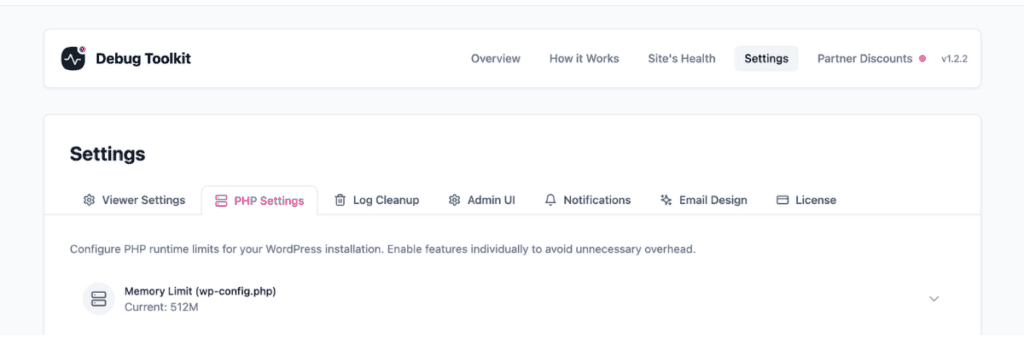
Click the card to expand it. Click Enable Custom Memory Limit to turn the setting on, then enter your desired value in the Memory Limit field. Values must follow the format 256M or 1G, where a number is followed by M (megabytes), G (gigabytes), or K (kilobytes).
Use the table in the Settings Reference section below as a reference for common values.
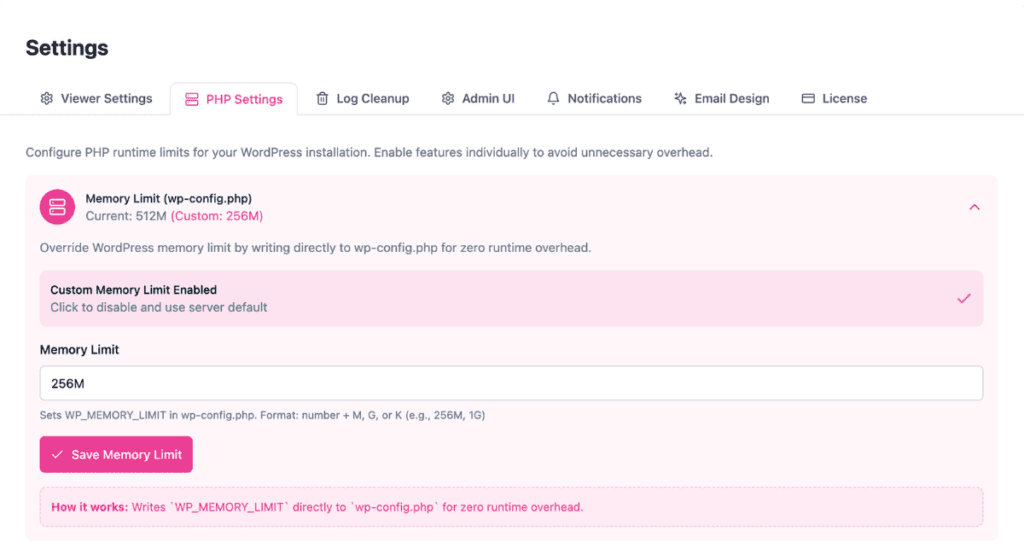
WPDT writes the constant to wp-config.php immediately.
php
// wp-config.php -- written by WPDT on save
// Adjust the value to match your site's requirements
define( 'WP_MEMORY_LIMIT', '256M' );
✅ What You Should See: The card subtitle updates to show the new Current value. On most hosts, Current will match your Custom value immediately. If Current remains lower than Custom, your host is preventing the change from taking effect at runtime. In that case, raise memory_limit in php.ini, add php_value memory_limit 512M to .htaccess if your host allows it, or contact your hosting provider.
Locate the Upload Limit (WordPress Filter) card. The subtitle shows Current, which is the upload limit PHP is enforcing. If you have not yet set a custom limit, no Custom value appears. The card only shows the server default.
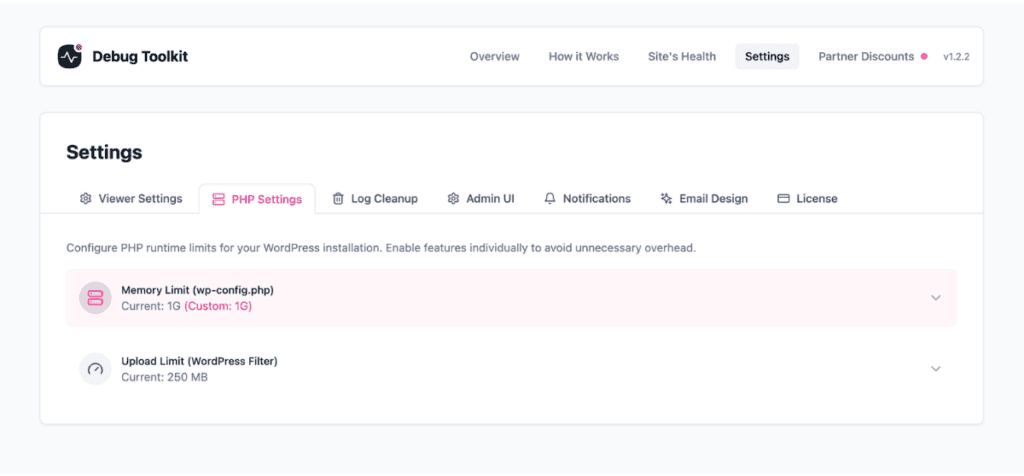
Click the card to expand it. Click Enable Custom Upload Limit to toggle the setting on, then enter your desired value in the Upload Max Filesize field using the same format: a number followed by M, G, or K. WPDT applies this value through the WordPress upload_size_limit filter.
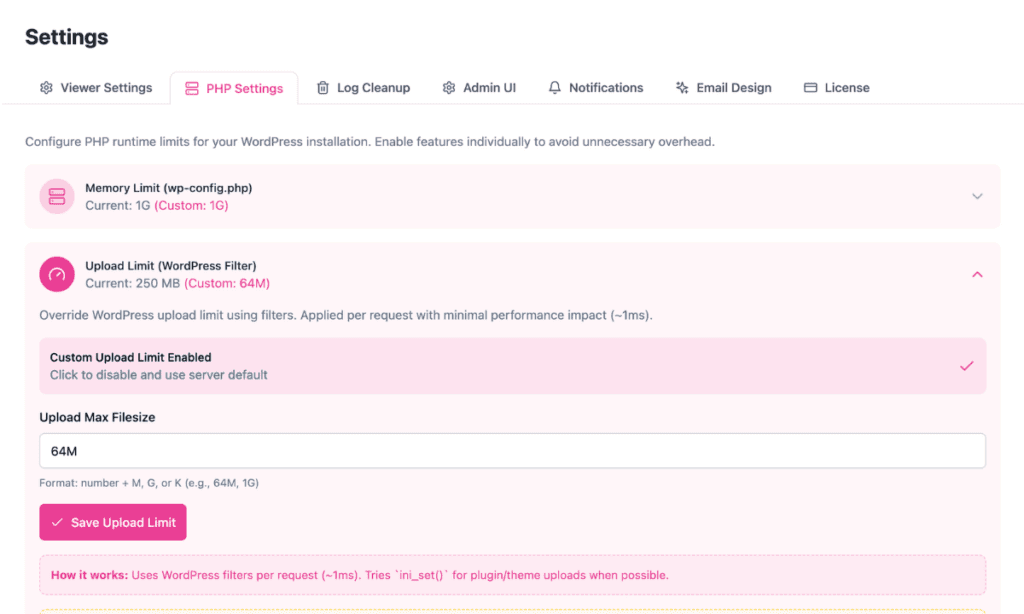
✅ What You Should See: The card subtitle updates to show Current matching your Custom value. Note that this reflects the WordPress-level limit WPDT has applied; it does not confirm whether your server’s php.ini upload limits accommodate the same size. If uploads still fail after saving, check upload_max_filesize and post_max_size in php.ini and raise both to match your desired upload size, setting post_max_size slightly higher than upload_max_filesize.
| Setting | What It Controls | Default | Notes |
|---|---|---|---|
WP_MEMORY_LIMIT | Maximum PHP memory for WordPress operations | 40 MB (single-site), 64 MB (multisite) | On most hosts, WPDT applies the configured value at runtime, so the effective memory limit can exceed what php.ini specifies. On hosts that restrict runtime changes, the php.ini ceiling applies. The card subtitle shows both Custom and Current, so you can see whether the change took effect. |
Common values for WP_MEMORY_LIMIT:
| Value | Use Case |
|---|---|
| 128M | Small sites with lightweight plugins |
| 256M | Most production sites and WooCommerce stores |
| 512M | Large sites with complex page builders and bulk operations |
| Directive | Where Set | What It Controls |
|---|---|---|
upload_max_filesize | php.ini | Maximum size of a single uploaded file |
post_max_size | php.ini | Maximum size of the entire POST request body |
| WPDT upload limit | WordPress upload_size_limit filter | WordPress-level cap applied by WPDT |
The effective upload limit is always the lowest of the three values. Raising only the WPDT upload limit has no effect if upload_max_filesize in php.ini is lower.
On most hosts, WPDT applies the memory limit at runtime on every request, so a correctly saved value takes effect without any server changes. If Current in the card subtitle is still lower than your Custom value after saving, your host is preventing the runtime change. Raise memory_limit in php.ini, add php_value memory_limit 512M to .htaccess if your host allows it, or contact your hosting provider.
The upload card will always show Current equal to your Custom value. It does not reveal whether server-level php.ini limits are blocking the upload before WordPress processes it. If uploads are failing despite a correctly saved Custom value, check upload_max_filesize and post_max_size in php.ini directly and raise both to match your desired upload size. Set post_max_size slightly higher than upload_max_filesize. If you cannot edit php.ini , contact your hosting provider.
For the memory limit, yes, on most hosts. WPDT applies the configured value at runtime on every request, so the effective memory limit is typically raised without any php.ini edit. For the upload limit, no. WPDT controls what WordPress accepts, but PHP enforces its own upload limits at the server level before the request reaches WordPress. Raising the upload Custom value in WPDT is not enough on its own. upload_max_filesize and post_max_size in php.ini must also accommodate the desired size.
For the memory limit, it means your host is preventing the configured value from taking effect at runtime. This is not the common case (most hosts allow it), but when it happens, you will need to raise memory_limit in php.ini, try a .htaccess override, or contact your host. For the upload limit, Current will always match Custom; the card does not reflect server-level php.ini upload constraints. If uploads are failing despite Current matching Custom, check upload_max_filesize and post_max_size in php.ini directly.
No. WP_MEMORY_LIMIT takes effect on the next WordPress page load because WordPress reads it from wp-config.php at the start of each request. The upload_size_limit filter applies within each WordPress request. Neither requires a server restart. Changes to server-level php.ini directives, however, typically do require a PHP or web server restart, and those are outside WPDT’s scope.
How to Automatically Enable WordPress Debug Mode – Manage WP_DEBUG, WP_DEBUG_LOG, and related constants from the same Settings panel.
Permission Elevation – If WPDT can’t write to wp-config.php on your host, here’s what’s happening and how to fix it.
Out of Memory Errors – Learn how WPDT’s Site Monitor catches and alerts you to memory exhaustion errors, even when PHP runs out of memory mid-request.
