
WP Debug Toolkit (WPDT) gives you three ways to export your WordPress error logs data out of the Error Logs view: press D to download the visible entries as a file, press C to copy all visible entries to the clipboard, or press X on a specific entry to copy that one entry. All three methods export exactly what you see. Any active filters and search terms you have enabled determine what is included.
Apply your filters and search terms first. The download reflects whatever is currently visible in the viewer at that moment, and WPDT excludes any entries hidden by filters or search from the file.
Press D or click the Export button in the toolbar. WPDT downloads a file containing all entries currently visible in the viewer.
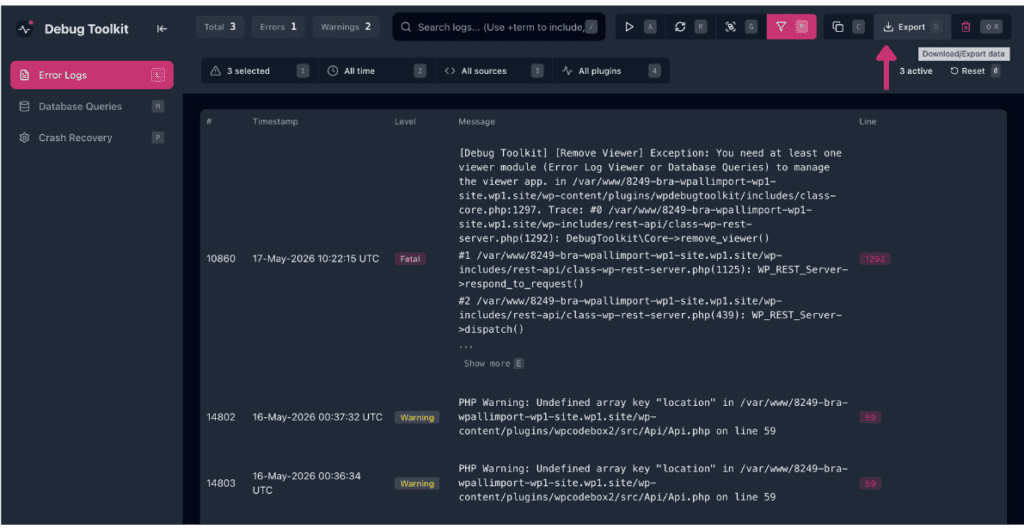
✅ What You Should See: Your browser starts a file download. The file contains the log entries that matched your active filters and search at the moment you pressed D.
Press C. WPDT copies all currently visible entries to the clipboard as plain text. You can paste them directly into an email, a support ticket, or an AI assistant without saving a file first.
Hover over the entry you want. Press X, or click the copy icon that appears on hover. WPDT copies that entry to the clipboard. Use this when you need to share one specific error without the surrounding context.
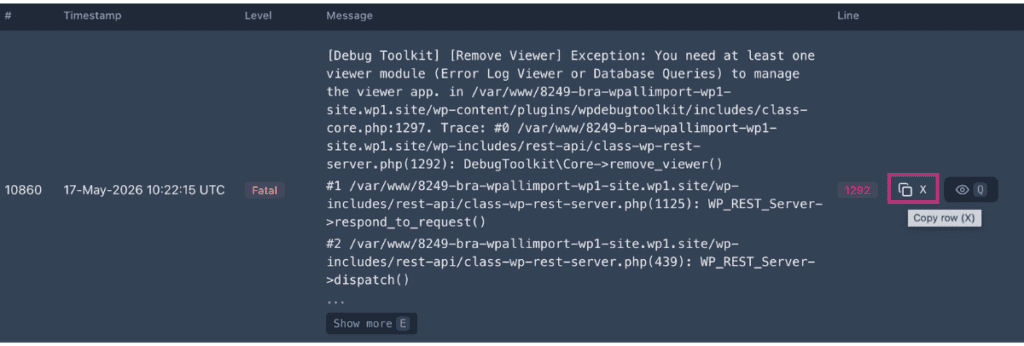
Note: The export contains only the entries visible in the viewer at the time of export. Apply filters and search before exporting to control what is included.
Four situations where exporting comes in handy:
Likely cause: Filters or search terms were not active at the time of export. The download always reflects the full visible set, which defaults to all entries when no filters are applied.
Fix: Apply the relevant filters and search terms in the Error Logs view, confirm the entry count in the header, then press D to download.
D and X work in both the Error Logs view and the Database Queries view, but they behave differently in each. C copies all visible entries to the clipboard in the Error Logs view, while in Database Queries, it opens an export dialog instead. For the complete list of keyboard shortcuts across the viewer, see the Keyboard Shortcuts article.
The shortcuts exist in the Database Queries view as well, but they do not behave the same way as in Error Logs.
D opens an Export Queries dialog where you choose a format (JSON, TSV, or CSV) before the export runs. It does not trigger an immediate file download the way it does in the Error Logs view.C opens the same Export Queries dialog. There is no copy-all-to-clipboard feature for query data.X copies the SQL of the focused query row to the clipboard. The viewer confirms this with a “SQL query copied to clipboard” message. It does not copy the full formatted entry.How to Filter and Search WordPress Error Logs – Scope your log to exactly the entries you need before you export. The +include and -exclude operators give you precise control.
WordPress Error Log Rotation and Retention – Export the current log before clearing it; the Delete cleanup method removes entries permanently with no archive.
Keyboard Shortcuts – The complete shortcut reference for the viewer, including every export key covered in this article.
