
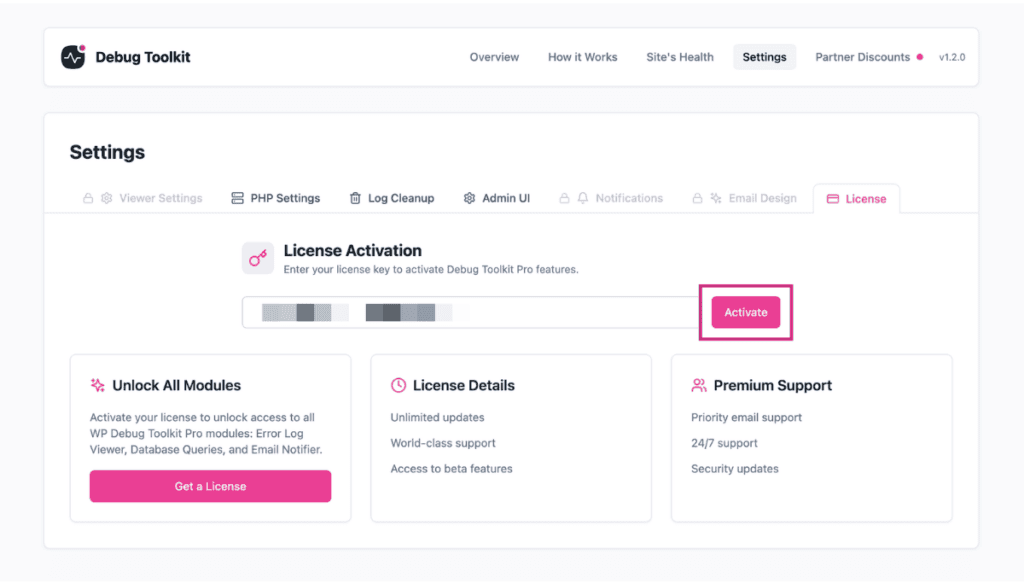
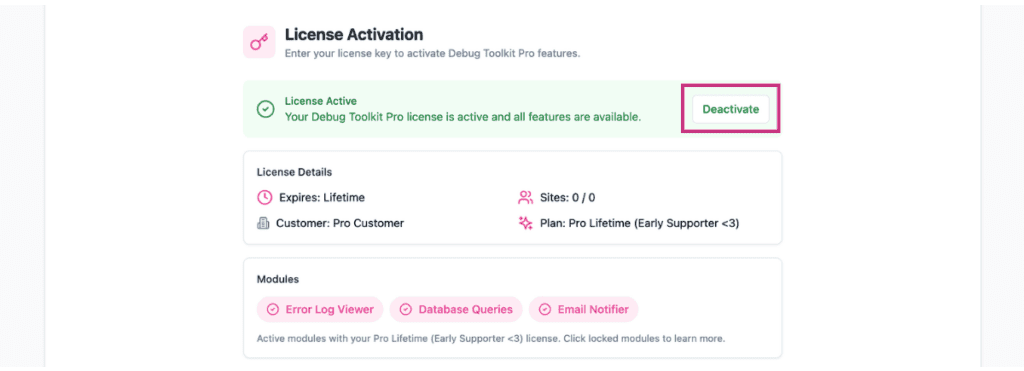
A WP Debug Toolkit (WPDT) license key tells the plugin which modules to unlock on your site. To activate, navigate to WP Debug Toolkit › Settings › License, paste your key into the license field, and click Activate. To deactivate, click Deactivate from the same screen. Both actions are also available via WP-CLI using wp dbtk license activate and wp dbtk license deactivate.
A WPDT license key is a credential that tells the plugin which functional modules to make available on a particular WordPress site.
When you activate a key, WPDT verifies it against the licensing server, confirms which tier and modules your purchase covers, and registers the current site as one of your active activations. The key maps to a specific set of capabilities and not just a proof of payment.
Without an active license, WP Debug Toolkit loads in a limited state. You can still view the current status of all debug constants at a glance, and the Site Health integration checks remain available.
However, module features like the standalone Viewer App, database query logging, and Site Monitor email notifications require an active license for the corresponding module before they become accessible.
When you submit a license key, WPDT sends a verification request to the licensing server. The server returns the license status, tier, plan, expiry date, and the modules included in your purchase.
WPDT stores this response locally, so the plugin does not need to contact the licensing server on every page load after the initial activation.
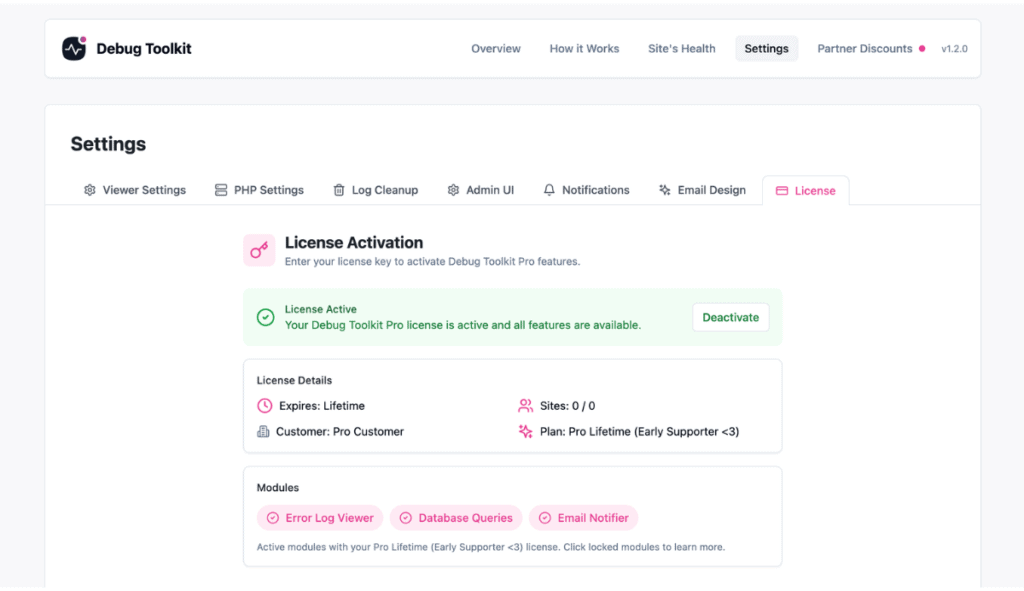
If you enter a valid license key, the License tab displays a green License Active card confirming that all features are available. Each available module is also displayed with a checkmark to show exactly what your key covers at a glance.
If activation fails, the card switches to License Activation Failed with a plain-English explanation, such as “This license has expired. Please renew your license to continue using WP Debug Toolkit.”
Your module access is cut off the moment your license expires if your billing method fails.
Each license key has an activation limit, which is essentially a cap on the number of WordPress sites that can hold an active registration at the same time.
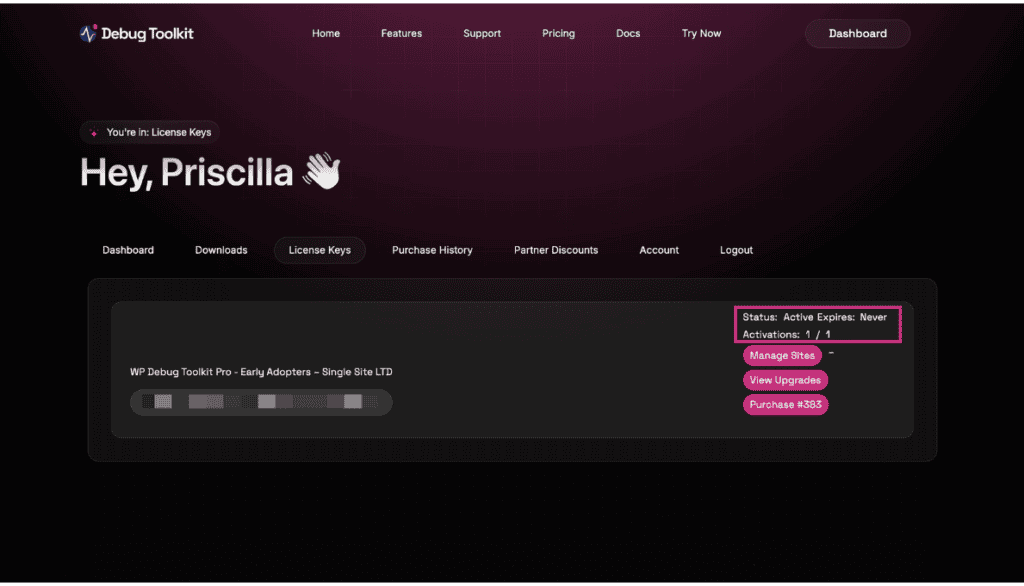
When you activate on a new site, that site claims one slot from your total. When you deactivate properly, the slot is released immediately and is available for another site.
Deactivating the WPDT plugin without first deactivating the license does not release the slot. The site registration stays counted against your limit.
If you remove the plugin without deactivating, you must manually release the stale activation from your account dashboard at wpdebugtoolkit.com/portal. This matters most when migrating sites, spinning up staging environments, or handing a site off to a client.
✅ Key Guarantees
| Term / Constant / Field | What It Means |
|---|---|
| License key | The alphanumeric credential you receive at purchase. You paste this key into the License tab to activate WPDT on a site. One key can be used across multiple sites, up to the activation limit. |
| Activation limit | The maximum number of WordPress sites that can hold an active registration simultaneously under a single license key. Activating on a new site claims one slot; deactivating releases it. |
| License status | The current state of the license on your site, returned by both the License tab and the wp dbtk license status command. The CLI returns Active when the license is valid and Inactive otherwise. The admin UI shows this as a License Active or License Activation Failed card on the License tab. |
| Tier | The product tier your license covers, such as Lifetime Pro. Tier determines which modules are included under the key. |
| Modules | The individual feature sets your license unlocks: viewer (standalone Viewer App), query (Database Monitor), and email (Site Monitor notifications). The Unlimited and Lifetime Pro-tier licenses include all three. |
| Plan | The billing type for your license, such as Pro Annual or Pro Lifetime. Plan determines expiry behavior and renewal requirements. |
The four tasks below cover the full license lifecycle. Each task includes both a UI path and a WP-CLI alternative.
After installing and activating the WPDT plugin, activate your license key to unlock the modules included in your purchase.
WP-CLI alternative:
bash
# Replace XXXX-XXXX-XXXX-XXXX with your actual license key
wp dbtk license activate XXXX-XXXX-XXXX-XXXX
Example output:
Activating license...
Success: License activated. Tier: Pro. Modules: viewer, query, email.
✅ What You Should See: The License tab shows a confirmation message and lists the modules now unlocked by your key. If you purchased a Pro license, all three modules, which are the viewer, query, and email modules, appear in the list.
To review your current license details from the command line:
bash
# Returns the current license status, tier, plan, expiry date, and active modules
wp dbtk license status
Example output:
+---------+---------------------------+
| Field   | Value                     |
+---------+---------------------------+
| Status  | Active                    |
| Tier    | Pro                       |
| Plan    | Pro Annual                |
| Expires | 2027-03-15 00:00:00       |
| Modules | viewer, query, email      |
+---------+---------------------------+
For scripting or integration with deployment workflows, use the –format=json flag for machine-readable output:
bash
# Returns the same fields as structured JSON -- useful for CI pipelines or automation
wp dbtk license status --format=json
To check your license status from the admin UI without resubmitting the key, navigate to WP Debug Toolkit › Settings › License. The tab displays the current status, tier, and active modules. It also displays the expiry date and the activation count used versus available.
You should always deactivate your license before removing WPDT from a site. This releases the site slot and keeps your activation count accurate.
WP-CLI alternative:
bash
# Deactivates the license on the current site and releases the activation slot
wp dbtk license deactivate
✅ What You Should See: The License tab updates to show the license field cleared and all modules deactivated, confirming the site slot has been released.
To move your license from one site to another, deactivate it on the current site first, then activate it on the new site. The two steps are independent and can be performed from the admin UI, the command line, or a combination of both.
From the admin UI:
WP-CLI alternative:
bash
# Run this on the site you are transferring from
wp dbtk license deactivateFrom the admin UI:
WP-CLI alternative:
bash
# Run this on the site you are transferring to
wp dbtk license activate XXXX-XXXX-XXXX-XXXX
⚠️ Warning: If you deactivate the WPDT plugin without first deactivating the license, the site activation remains counted against your limit. If you are on a single-site license, this may prevent you from activating on another site until you release the stale activation manually from your account dashboard at wpdebugtoolkit.com/portal. If you are on an unlimited pro plan, your activation limit is unlikely to be a concern.
Likely cause: A firewall rule or server-level network restriction is blocking the outbound HTTPS request WPDT makes to the licensing server during activation.
Fix: Confirm with your host that outbound HTTPS connections are permitted. If the problem persists after confirming network access, contact WPDT support with your server environment details.
Likely cause: The activation completed successfully, but the admin page has not reloaded to reflect the updated license state, or a cached response is showing stale data.
Fix: Hard-refresh the admin page after activation. If modules remain locked after the refresh, navigate to WP Debug Toolkit › Settings › License, and verify that the modules listed match your purchase. If they do not, click Deactivate License, then reactivate using the same key.
Likely cause: A previous site install was removed without first deactivating the license, or a staging or development environment is holding an active slot that is no longer in use.
Fix: Log in to your account at wpdebugtoolkit.com/portal and review your active site registrations. Remove any stale entries to free up slots, then activate on the new site.
Your modules stop working the moment your license expires, and you don’t have a valid payment method on file for automated renewal. You will see each module flip from Licensed to Not Licensed on the Overview page. You can renew at wpdebugtoolkit.com/portal and reactivate your key to restore access immediately.
Yes. A staging or development install counts against your activation limit the same as a production site. Before tearing down any environment, deactivate the license on that site to free up the slot for use elsewhere.
No. Your license remains active across plugin updates. You only need to interact with the license when moving to a different site, when your activation limit is reached, or when a renewal or status change requires it.
Installing WP Debug Toolkit – Install the WPDT plugin from the zip file before activating your license.
License Modules and Tiers – See which modules each tier includes and what each one unlocks.
Setting Up the WordPress Error Logs Viewer App – Install the standalone Viewer App after activating your license to enable the log viewer.
