
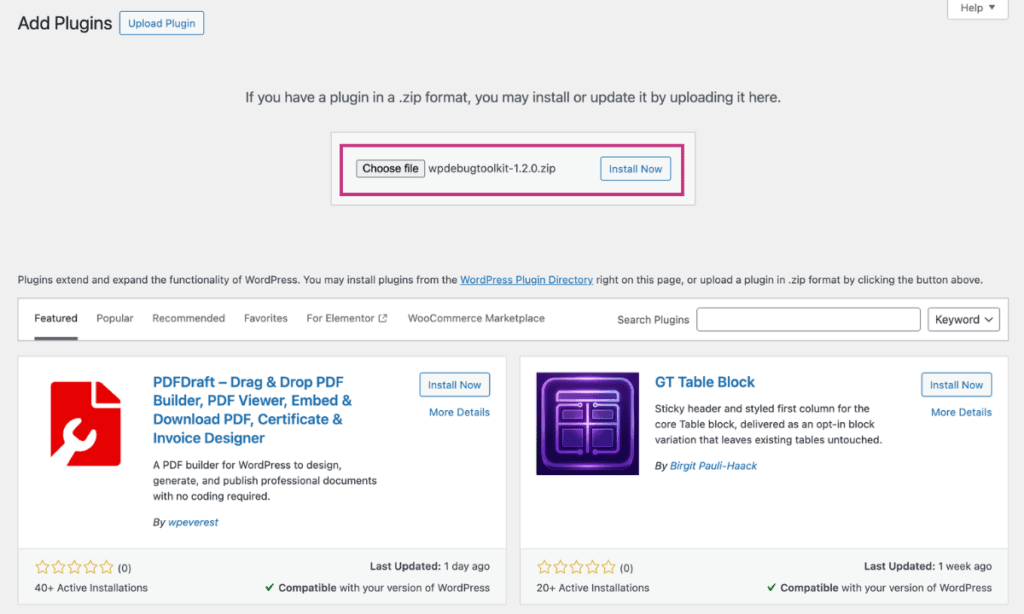
Install WP Debug Toolkit (WPDT) by downloading the wpdebugtoolkit-{version}.zip file from your account at wpdebugtoolkit.com/portal, then uploading it via Plugins › Add Plugin in your WordPress admin, and activating it. The WP Debug Toolkit menu appears in the sidebar when installation is complete.
WPDT is distributed as a zip file. You have two options for getting it onto your server.
This is the standard installation path for most sites.
✅ What You Should See: A new WP Debug Toolkit menu appears in the WordPress admin sidebar. The plugin is active and waiting for a license key.
Use this option if you have any server upload restrictions.
✅ What You Should See: The WP Debug Toolkit menu item appears in the sidebar, identical to the result from Option A.
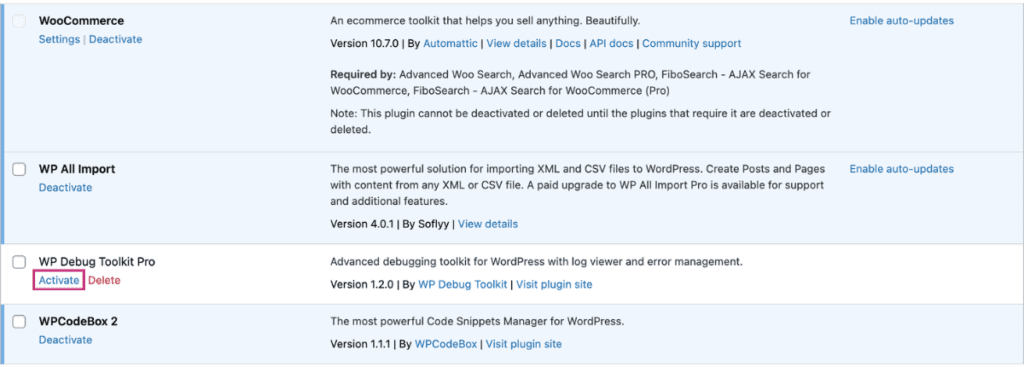
The plugin is now installed, but no features are unlocked yet.
To access the Error Log Viewer, Database Monitor, Site Monitor, or Viewer App, you need to activate a license key. See Activating and Deactivating Your License for the next step.
Likely cause: WordPress enforces a maximum upload file size set by your PHP configuration, and the WPDT zip file exceeds it.
Fix: Use the Option B method discussed above to manually install the plugin. Unzip wpdebugtoolkit-{version}.zip on your computer, upload the wpdebugtoolkit folder to wp-content/plugins/ via FTP or your host’s file manager, then activate the plugin from Plugins in your WordPress admin.
Likely cause: The folder was uploaded to the wrong directory, or an extra nesting level was created during the unzip step.
Fix: Confirm that the plugin folder sits at wp-content/plugins/wpdebugtoolkit/ on your server. If the path reads wp-content/plugins/wpdebugtoolkit/wpdebugtoolkit/, move the inner folder up one level and reload the Plugins screen.
Activating and Deactivating Your License – Activate your license key to unlock the modules in your purchase.
License Modules and Tiers – See what each module unlocks and which tier includes it.
Setting Up the WordPress Error Logs Viewer App – Deploy the standalone Viewer App and keep log access even when WordPress is down.
