
A shareable URL lets a client, team member, or support agent trigger a query recording on your site without WordPress admin access. Generate one from the recording dialog in WP Debug Toolkit, configure the usage limit and expiry, and share the link to capture the exact database queries from their session without sharing your login credentials.
Navigate to WP Debug Toolkit › Overview and click Record on the Database Monitor card. The recording dialog opens.

Toggle Enable shareable URL inside the recording dialog. Three configuration options appear below the toggle.
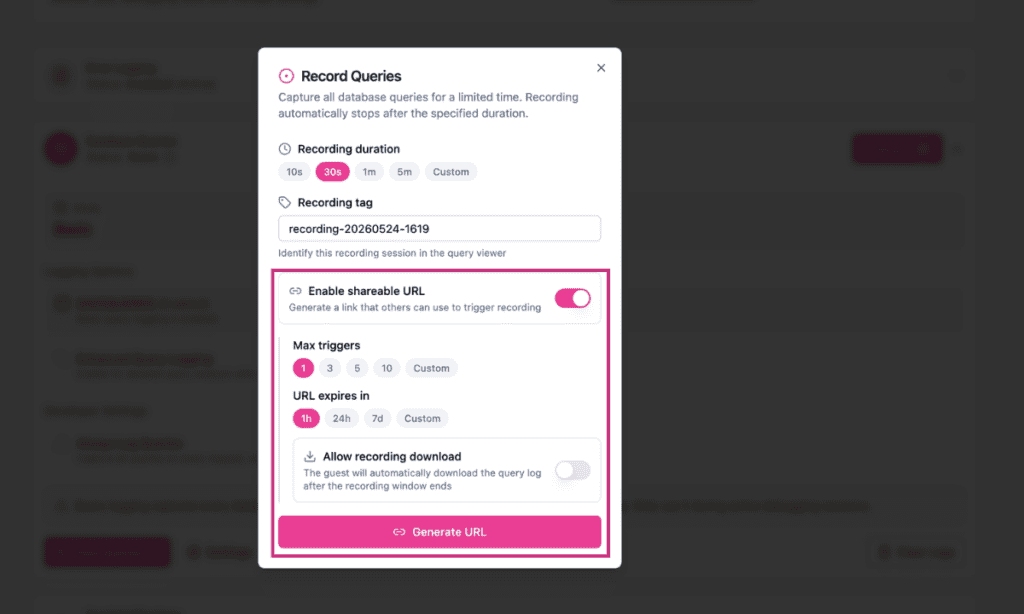
Set each option before generating the link:
Click Generate URL. A Shareable URL Ready dialog opens with the generated link and a copy button. Copy the URL and share it with your client or team member, then click Dismiss.
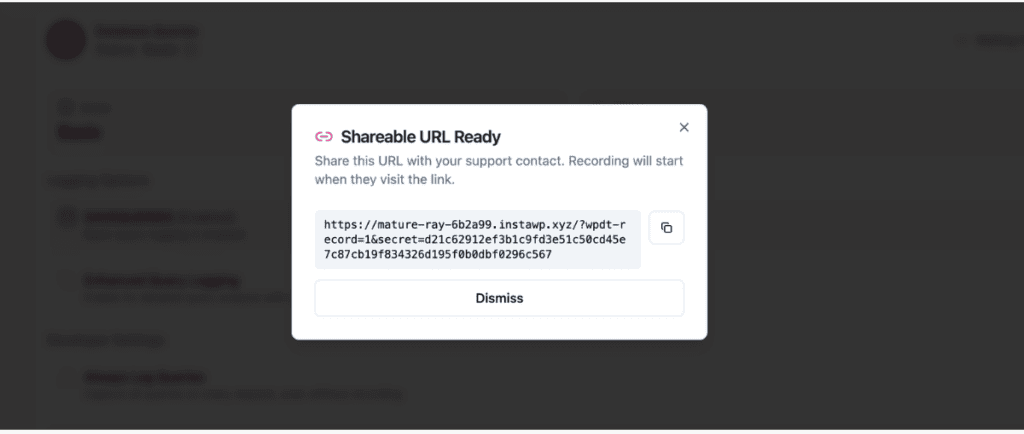
✅ What You Should See: The Shareable URL Ready dialog displays the full URL. The recipient does not need a WPDT account or WordPress admin access to use it.
The recipient opens the URL and lands on a recording page. Once the recording starts, the page shows a “Recording in Progress” state with a countdown timer and two navigation buttons: Visit Frontend and Go to WP Admin. These let the recipient navigate to the relevant part of your site while the recording runs.

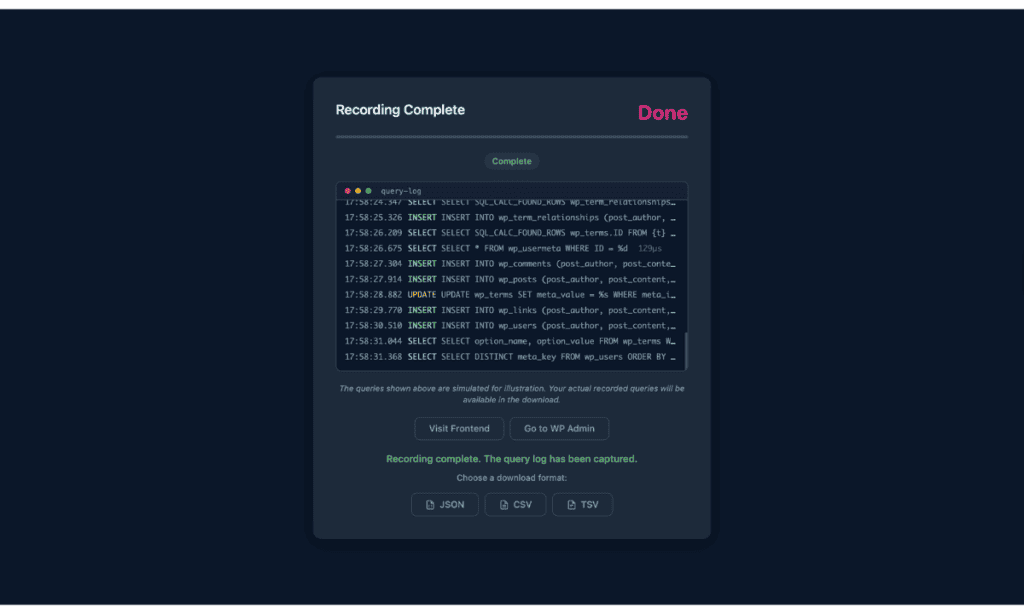
When the recording finishes, the page updates to “Recording Complete” and confirms that the query log was captured. If you enabled Allow recording download, a prompt appears asking the guest to choose a download format: JSON, CSV, or TSV.
Shareable URLs are token-specific, so the recipient cannot view the main query log, access the admin dashboard, or modify any settings. The URL stops working after the usage limit or expiry, whichever comes first. If you enabled Allow recording download, the guest can still download a completed log for up to 24 hours after the URL expires. However, they cannot trigger a new recording once either limit is reached.
| Setting | What It Does |
|---|---|
| Max triggers | Controls how many times the URL can be used before WPDT deactivates it. Set this to 1 for a one-time capture, or to a higher value if multiple team members need to trigger the same recording. |
| URL expires in | Sets a hard deadline for the URL regardless of remaining triggers. Use a short expiry on production sites to reduce the window of exposure. |
| Allow recording download | Determines whether the guest can download the query log file after the recording completes. When enabled, the guest chooses from JSON, CSV, or TSV format. Enable this when handing the recording off to a developer who needs the file for offline analysis. |
Shareable URLs are useful any time you need someone else to trigger a recording without giving them access to your WordPress admin. If a specific page is slow for another person but not for you, you can send them the URL and ask them to load that page while the recording is active. This way, you can capture queries from their exact session, not yours.
For multi-step flows like checkout, share the URL with whoever is running through the process so the recording captures every query across that sequence.
For intermittent issues that appear only at certain times, set a longer recording during the window when the problem tends to occur and share the URL in advance. Afterward, open the recording in the Query Viewer when it completes and click the Slow filter to isolate the queries that exceeded the slow query threshold.
The Max triggers limit was reached before the expiry date. WPDT deactivates the URL as soon as either limit is hit, whichever comes first. Create a new shareable URL with a higher trigger count if multiple people need to use the same recording.
The URL has reached its usage limit or has expired. The recipient’s page displays “Recording Unavailable” with the message “This recording link has reached its usage limit.” Create a new shareable URL and share the updated link with the recipient.

No. The recipient only needs the URL itself. They do not need a WPDT license, a WordPress account, or any special access. WPDT authenticates the request via the unique token embedded in the URL, not via WordPress credentials.
Yes. WPDT writes shareable recording data to a token-specific log file, separate from the main query log. If you assigned a recording tag when creating the URL, press F in the Query Viewer to open the filter bar, click the Recordings filter, and select the tag from the dropdown to isolate those queries. Without a tag, use the All time filter to narrow by the time range when the recording ran.
Recording WordPress Database Queries – Start here if you haven’t set up a recording session yet; covers duration, tags, and everything you need before generating a shareable URL.
Filtering and Searching Recorded Queries – Once the recording comes in, use the Recordings filter in the Query Viewer to pull up exactly the queries you need.
How to Share a Recording with a Developer – Need to hand the completed recording off to someone outside your team? This walks you through the whole process.
