
WordPress debug.log grows continuously on active sites. On a site with debug logging enabled, a single busy day can generate tens of megabytes of log data, consuming disk space and making the log harder to navigate. WP Debug Toolkit (WPDT) provides automatic and manual cleanup to keep log files at a manageable size. Configure both at WP Debug Toolkit › Settings › Log Cleanup.
WPDT schedules a daily cleanup task via WordPress cron (the dbtk_daily_log_cleanup action). On each run, WPDT checks two independent conditions.
If debug.log exceeds the configured age threshold, WPDT applies your configured cleanup method (Delete, Archive, or Truncate). If debug.log exceeds the configured size threshold, WPDT always truncates the file regardless of which cleanup method you have selected.
The two checks run independently, and either can fire on the same run.
Note: Automatic log cleanup hardcodes wp-content/debug.log as its target. If your site uses a custom log path configured under WP Debug Toolkit › Settings › Viewer Settings, or via the DBTK_LOG_PATH constant, the daily cleanup task will not process that file. The manual cleanup options: the Clear Log button, Shift+R in the Viewer App, and wp dbtk log clear, do resolve the actual log path and honor custom path settings. If your site uses a non-standard log location, use manual cleanup or a server-level rotation tool for that file.
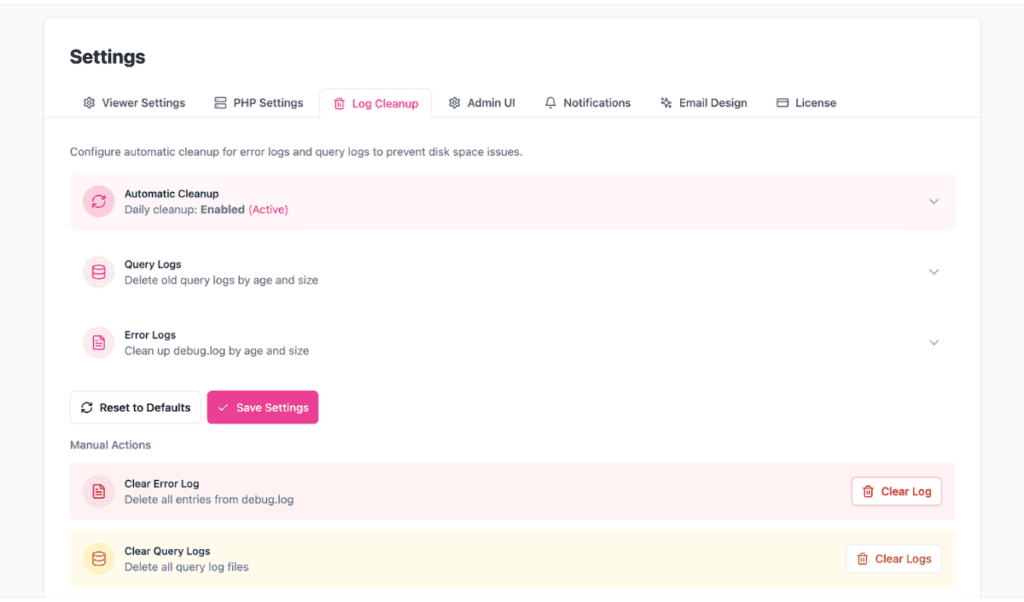
Go to WP Debug Toolkit › Settings and click the Log Cleanup tab. WPDT displays the automatic cleanup status and configuration cards for both Error Logs and Query Logs. This article covers the Error Logs card. The Query Logs card controls cleanup for database query logs. See Query Log Rotation and Retention for that configuration.
Expand the Error Logs card and adjust Handle old logs (days) and Truncate oversized logs (MB) to match your storage constraints.
Select a cleanup method from the Cleanup method for old logs options. Archive with Date Stamp is the default and creates a dated backup file, for example, debug.log.old.2025-11-03, rather than permanently removing the log.
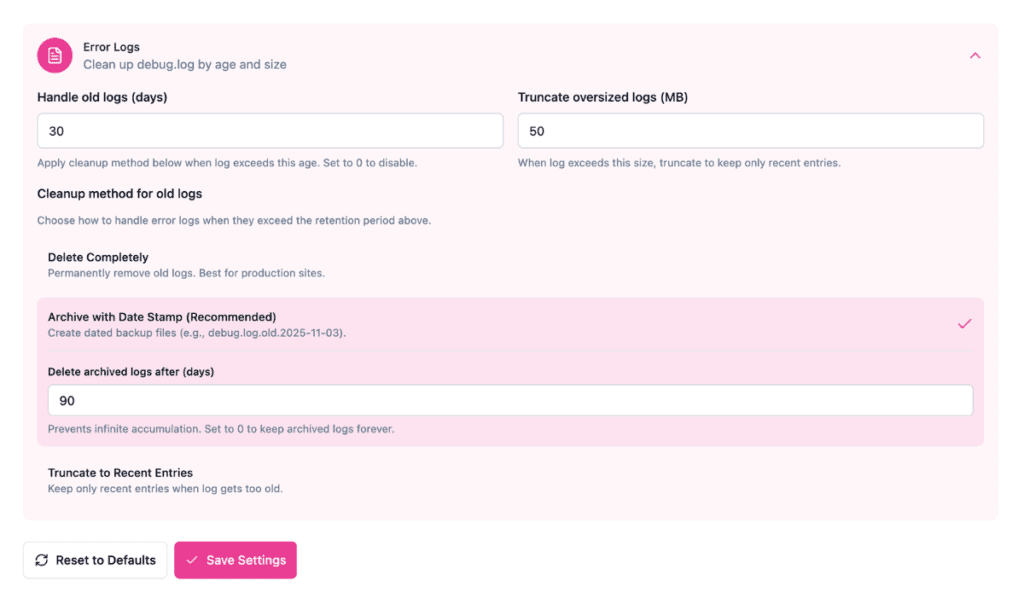
Click Save Settings.
✅ What You Should See: The Automatic Cleanup card confirms “Daily cleanup: Enabled (Active)” and the values you entered are reflected in the Error Logs card.
Three options trigger an immediate cleanup outside the daily cron cycle.
Go to WP Debug Toolkit › Settings › Log Cleanup and click Clear Log in the Manual Actions section. This deletes all entries from debug.log immediately.
Press Shift+R in the Error Log Viewer. A confirmation dialog appears. Press Enter to confirm. This deletes the entire log file regardless of the configured cleanup method.
bash
wp dbtk log clear
This clears the debug log from the command line.
| Setting | What It Does |
|---|---|
| Automatic Cleanup | WPDT runs a daily cleanup cycle against your error logs and query logs when this is enabled. Disable it only if you manage log rotation through a separate server-level process. |
| Handle old logs (days) | WPDT applies the selected cleanup method to debug.log when the file age exceeds this number of days. Lower this value on high-traffic sites where logs grow quickly. Set to 0 to disable age-based cleanup entirely. Default: 30. |
| Truncate oversized logs (MB) | When debug.log exceeds this file size, WPDT truncates it to retain only the most recent entries, regardless of the configured cleanup method. Lower this value if disk space is constrained on the server. Valid range: 1–1000 MB. Default: 50. |
| Delete | WPDT removes the entire debug.log file and creates a new empty one in its place when the cleanup condition is met. No historical data is preserved. Choose this method on production sites where preserving log history is not a priority and disk space is the primary concern. |
| Archive | WPDT moves the current debug.log to a dated archive file, for example, debug.log.old.2025-11-03, then creates a new empty log. This is the default method. It preserves log history without allowing a single file to grow without bound. |
| Truncate | WPDT keeps the most recent portion of debug.log and removes the rest. The amount to keep is configurable via Truncate keep size. WPDT inserts a truncation marker at the top of the file to indicate that older content was removed. Choose this when you want a rolling window of recent errors without creating separate archive files. |
| Truncate keep size | Amount of recent data in MB to preserve when truncating. WPDT uses this value for both the age-based Truncate cleanup method and the size-based truncation triggered by Truncate oversized logs (MB). Default: 10 MB. |
| Delete archived logs after (days) | WPDT automatically deletes archived log files after this many days, preventing dated backup files from accumulating on disk. This setting only takes effect when the cleanup method is Archive. Set to 0 to keep archived logs forever. Default: 90. |
Note: Setting retention to 0 days disables age-based cleanup for that log type. Size-based limits still apply.
The dbtk_daily_log_cleanup action relies on WordPress cron, which is triggered by site visitors. On low-traffic sites, cron events may run late. For reliable scheduling, configure a system-level cron job to trigger WordPress cron:
bash
# Run WordPress cron every hour via system crontab
0 * * * * cd /path/to/wordpress && wp cron event run --due-nowdebug.log Keeps GrowingLikely cause: The log is growing faster than the daily cleanup cycle can keep up with, or the Truncate oversized logs (MB) threshold is set too high for the available disk space.
Fix: Lower the Truncate oversized logs (MB) value in the Error Logs card, then click Save Settings. If archiving is also contributing to cumulative disk usage, switch the cleanup method to Delete.
Likely cause: The Delete archived logs after (days) value is set to 0, which instructs WPDT to keep all archived files indefinitely.
Fix: Go to WP Debug Toolkit › Settings › Log Cleanup, expand the Error Logs card, and enter a non-zero value in Delete archived logs after (days). The default is 90 days.
debug.log Permanently by Default?No. The default cleanup method is Archive, which creates a dated backup file, for example, debug.log.old.2025-11-03, rather than deleting the original. Delete is available as an option, but you must select it explicitly. WPDT will not switch to it on its own.
Yes. Three options are available. In the admin dashboard, go to WP Debug Toolkit › Settings › Log Cleanup and click Clear Log in the Manual Actions section. In the standalone Viewer App, press Shift+R in the Error Log Viewer and press Enter to confirm. From the command line, run wp dbtk log clear. All three methods take effect immediately.
How to Filter and Search WordPress Error Logs – Work through your error log using the search bar and filter dropdowns before clearing or archiving it, so you capture what you need before WPDT removes it.
Custom Log Paths – If WPDT cannot find your debug.log because it is in a non-standard location on managed hosting, this article shows you how to point WPDT to the correct path.
Query Log Rotation and Retention – The same Log Cleanup tab also controls automatic cleanup for query logs. Configure both error log and query log retention from one place.
