
The db.php drop-in is a WordPress database override file that WP Debug Toolkit (WPDT) installs at wp-content/db.php. It extends the native wpdb class through DBTK_DB and overrides the query() method to capture full PHP backtraces before each query executes, enabling component attribution, caller identification, and detailed performance data in the Query Viewer.
db.php Drop-InWordPress supports a “drop-in” file at wp-content/db.php. When this file exists, WordPress loads it early in its bootstrap process and uses it in place of the default database class, giving any plugin that installs one a hook point into every SQL query the site executes.
WPDT uses this mechanism to replace the standard wpdb class with its own DBTK_DB class. Every query your site runs passes through the overridden query() method, where WPDT captures backtrace data before results return to the calling code.
WPDT’s drop-in intercepts queries at the lowest available hook point in WordPress, before any plugin or theme code can alter or suppress them. Three phases describe the full process.
When the DBTK_DB class intercepts a query, it performs two operations. First, it calls debug_backtrace() to record every function, file, and line number in the PHP call chain leading back to the code that originated the query.
Second, after the query completes, it records the number of affected rows or any WP_Error returned. Both pieces of data attach to the query entry, which WPDT writes to the encrypted query log during the PHP shutdown phase.
Writing during shutdown rather than inline with each query contains the performance impact. This mechanism is what makes component attribution precise: the backtrace identifies the plugin, theme, or core subsystem that initiated the query with more accuracy than SAVEQUERIES provides.
Without the drop-in, WPDT falls back to basic logging using the WordPress SAVEQUERIES constant. Here is what each mode provides:
| Capability | Basic (SAVEQUERIES) | Enhanced (db.php) |
|---|---|---|
| SQL statement | Yes | Yes |
| Execution time | Yes | Yes |
| Backtrace | Basic: parsed from SAVEQUERIES comma-separated stack trace | Yes: full PHP call stack with file, line, and function for each frame |
| Component attribution | Basic: derived from parsed backtrace | Yes: identifies the plugin, theme, or core subsystem responsible |
| Caller function | Basic: derived from parsed backtrace | Yes: the specific function or method that triggered the query |
| Affected rows / errors | No | Yes |
Enhanced logging provides structured backtraces with precise component attribution while Basic mode parses partial backtrace data from the comma-separated SAVEQUERIES stack trace, which gives less detail and accuracy.
WordPress loads only one db.php file. If another plugin has already placed a in wp-content/, WPDT cannot install its own. Confirmed conflict sources include Query Monitor (by John Blackbourn), Debug Bar, and some caching plugins.
When a conflict exists, WPDT falls back to basic logging automatically: SQL statements and timing data are still captured, but without backtraces or component attribution.
To check which drop-in is active, run:
bash
grep "DBTK_DB" wp-content/db.php
An empty output means that WPDT’s drop-in is not active. Read the file’s contents to identify the plugin that installed it, disable that plugin’s drop-in through its own settings, then re-enable WPDT’s enhanced logging. WPDT does not depend on another plugin’s db.php and does not require running both simultaneously.
✅ Key Guarantees
db.php drop-in automatically. No manual file handling is needed for either operation.db.php does not break query logging. WPDT automatically falls back to basic mode.| Term | What It Means |
|---|---|
db.php drop-in | A file WordPress supports at wp-content/db.php. When it exists, WordPress loads it early in its bootstrap process and uses it in place of the default database class. |
DBTK_DB | The class name WPDT uses in its db.php drop-in. It extends the WordPress wpdb class and overrides the query() method to capture backtraces before each query executes. |
debug_backtrace() | The PHP function WPDT calls before each query to record the full call chain: every function, file, and line number leading back to the code that initiated the query. |
| Component attribution | The process of identifying which plugin, theme, or WordPress core subsystem initiated a given SQL query, determined by analyzing the captured backtrace. |
SAVEQUERIES | The WordPress constant used in basic logging mode. It stores query data in memory for the current page load, providing partial backtrace information in a comma-separated format. This is less detailed than the full backtraces the drop-in captures. |
| Enhanced logging | The drop-in-powered logging mode that provides full backtraces, precise component attribution, caller identification, and affected row counts. Requires wp-content/db.php to be WPDT’s file. |
WPDT manages the db.php file entirely. You do not need any FTP access, nor is manual file handling required for installation or removal.
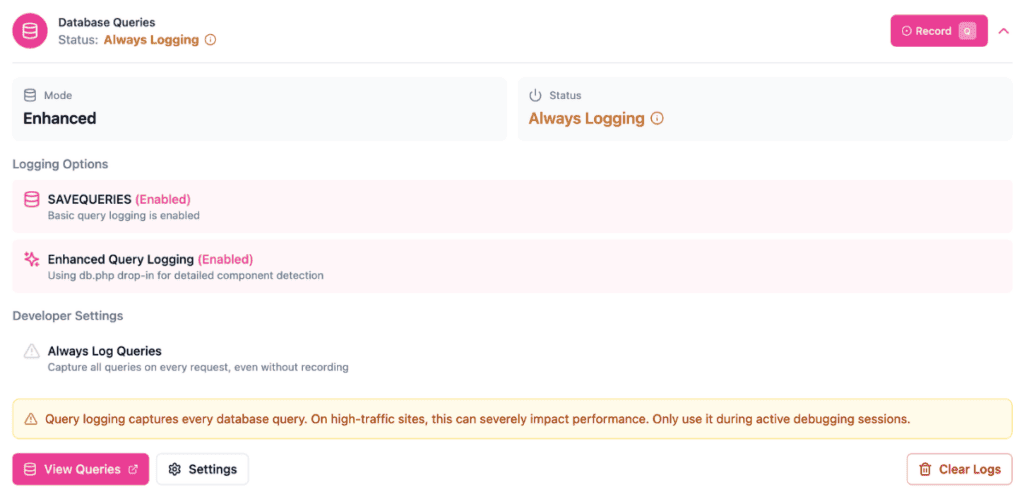
Navigate to WP Debug Toolkit › Overview. In the Database Queries card, toggle Enhanced Query Logging to enable it. WPDT copies its db.php template to wp-content/db.php. To enable from the command line instead, use Step 2.
bash
wp dbtk query-log on
WPDT installs the drop-in with this command. Use this path when you prefer CLI-based workflows or are working in a scripted environment.
✅ What You Should See: The Database Queries card on the Overview page displays a status indicator confirming the Enhanced Query Logging (drop-in) is active. Query entries in the Query Viewer will include backtrace and component attribution data.
Navigate to WP Debug Toolkit › Overview and toggle Enhanced Query Logging to disable it, or run:
bash
wp dbtk query-log off
WPDT deletes wp-content/db.php. If query logging remains enabled, WPDT continues to capture SQL statements and timing data in basic mode using SAVEQUERIES.
Likely cause: another plugin’s db.php is overriding WPDT’s file.
Fix: run grep “DBTK_DB” wp-content/db.php. If the output is empty, WPDT’s drop-in is not active. Read the file’s contents to identify the conflicting plugin, disable its drop-in through its own settings, then re-enable WPDT’s enhanced logging.
Likely cause: the PHP process does not have write access to wp-content/.
Fix: confirm that wp-content/ has permissions of 0755 with the web server user as owner. On managed hosting, the web server user may differ from the file owner. Contact your host if you cannot resolve this through file manager or SSH.
Likely cause: wp-content/db.php was modified by another plugin after WPDT installed it, or the PHP process lacks delete permission on the file.
Fix: remove the file manually:
bash
rm wp-content/db.php
This is safe. WordPress runs without wp-content/db.php and uses the default wpdb class.
db.php Drop-In — Frequently Asked Questionsdb.php Drop-In Break WordPress?No. WordPress runs normally without wp-content/db.php and uses its default wpdb class. The drop-in is optional: its presence enhances query logging, but its absence does not cause errors. Whether WPDT removes it on disable or you remove it manually, the site continues operating without interruption.
db.php?Not simultaneously in enhanced mode as WordPress loads only one db.php. If Query Monitor’s drop-in is active, WPDT automatically falls back to basic logging, so you still get SQL statements and timing data. To use WPDT’s full backtrace and component attribution capabilities, disable Query Monitor’s drop-in through Query Monitor’s own settings, then enable WPDT’s enhanced logging.
The drop-in calls debug_backtrace() before each query and records additional data, both of which add a small overhead per query. WPDT writes backtrace data to the encrypted log file during the PHP shutdown phase rather than inline with the query, which contains the impact.
On low-to-moderate traffic sites, the overhead is negligible. On high-traffic production sites with always-on logging, you should consider using time-limited recordings rather than continuous capture to minimize the cumulative effect.
Filtering and Searching Recorded Queries – The All components filter only works when the drop-in is active in enhanced mode. This article shows you how to use it to isolate any query by plugin, theme, or core.
Slow Query, N+1, and Duplicate Detection – These detection features run on the backtrace and caller data the drop-in captures. Start here if you’re investigating a performance problem.
Always-On Logging Mode – Leaving enhanced logging running on every request has performance implications. Read this before enabling continuous capture on a production site.
