
Customize WP Debug Toolkit (WPDT) notification emails from WP Debug Toolkit › Settings › Email Design. Four accordion groups (Branding, Email Content, Styling, and Advanced Options) control branding, content, layout, and optional sections. A live preview panel on the right updates as you change each setting, and a Send Test Email button lets you confirm rendering in your actual email client before going live.
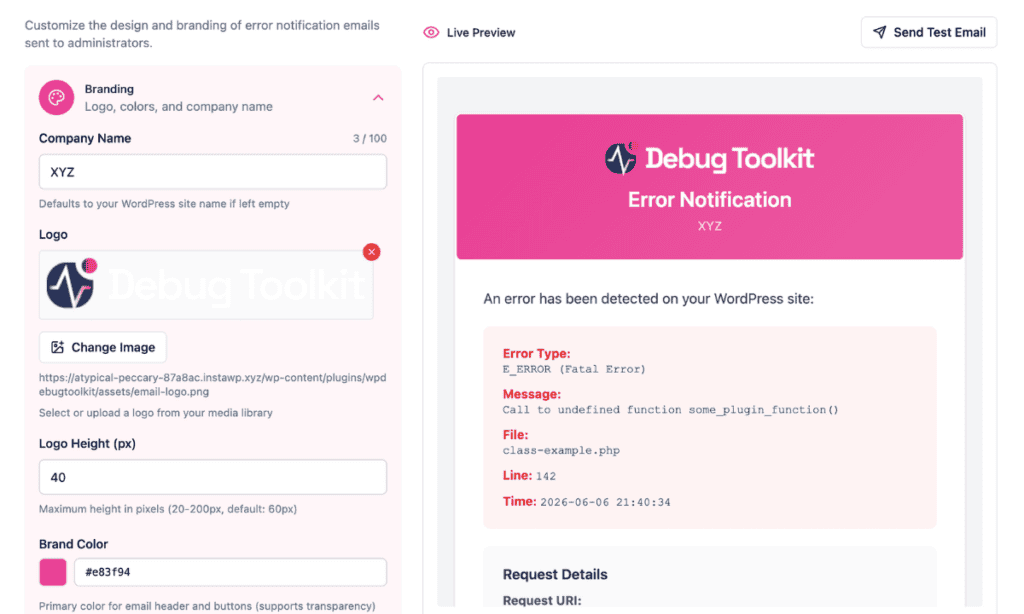
Navigate to WP Debug Toolkit › Settings › Email Design. The page opens with a settings panel on the left and a live preview on the right. Click Branding to expand the first accordion group.
Fill in these fields:
✅ What You Should See: The live preview header updates immediately to reflect the changes that you have made. Your logo appears in the header area, and your brand color fills the header background.
Click Email Content to expand the second accordion group. This group controls the text that appears in the body and footer of notification emails.
Fill in any fields that apply to your setup:
Click Show available variables to see the dynamic values available for use in the Email Introduction and Footer Text fields. WPDT replaces each variable with its actual value at send time. Variables entered in Recovery Button Text or Recovery Description are not substituted and appear as literal text in the email. Below are the available variables:
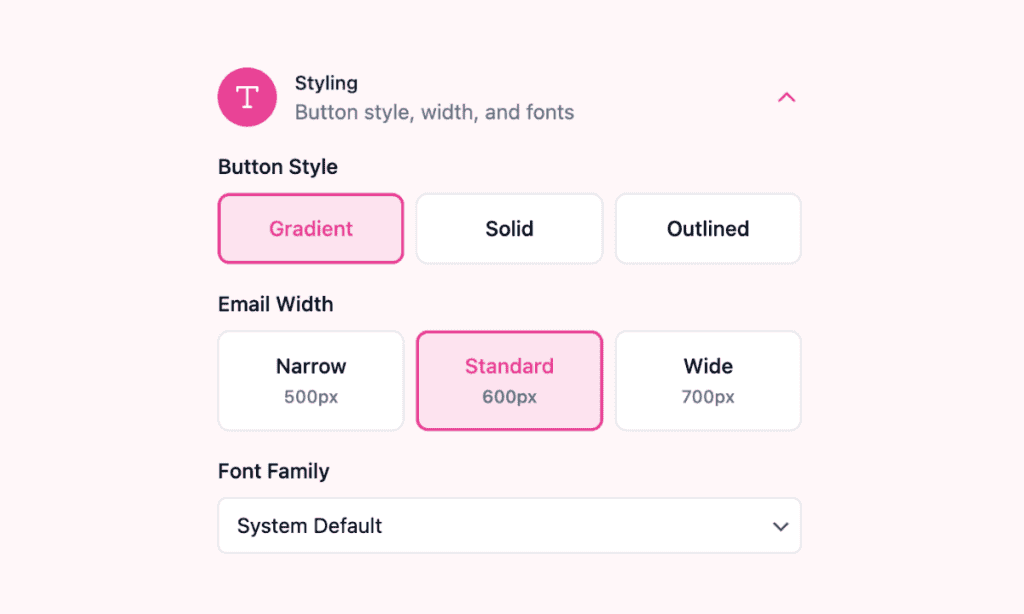
Click Styling to expand the third accordion group.
Button Style offers three options: Gradient, Solid, and Outlined. Gradient is the default and renders correctly in most email clients. Use Solid if your recipients use Outlook heavily.
Email Width offers Narrow (500px), Standard (600px), and Wide (700px). Standard is the default and suits most notification formats. Use Wide if your stack traces need more horizontal space.
Font Family offers five options: System Default, Arial, Helvetica, Georgia, and Verdana. System Default uses a system sans-serif stack with no web font dependency and is the most reliable choice across email clients. Georgia is the only serif option, suitable if your brand uses a traditional typeface.
Click Advanced Options to expand the fourth accordion group. Two toggles control optional email content:
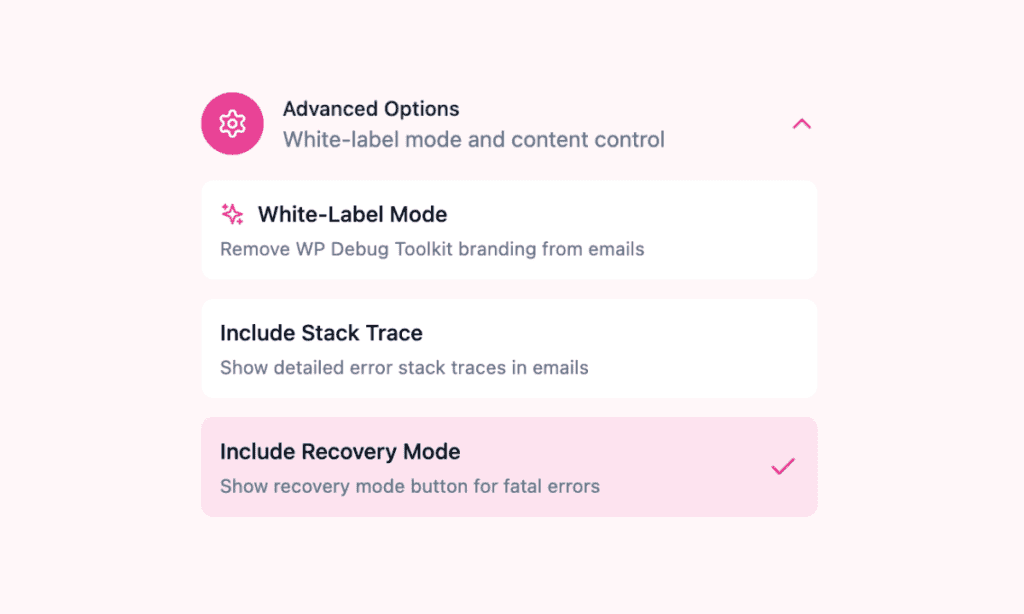
White-Label Mode removes the WPDT attribution block from the email footer. See Advanced Configuration below for full details.
Include Recovery Mode controls whether the recovery mode button and description appear in the email. This toggle is ON by default. Keep it enabled for sites running WooCommerce or other mission-critical plugins where a fatal error requires immediate recovery mode access.
Click Save Settings.
After saving, use the Send Test Email button in the top-right corner of the page to send a sample notification to the configured recipient. Check both your inbox and your spam folder, and review rendering in the actual email client rather than relying on the in-page preview alone.
✅ What You Should See: The delivered test email reflects all four accordion groups. If the preview and the live email differ, see the troubleshooting section below.
White-Label Mode removes the WPDT attribution block from the email footer. When enabled, the line crediting “WP Debug Toolkit Pro” no longer appears at the bottom of notification emails.
The header logo is, however, not controlled by this toggle. If you have uploaded a custom logo under Branding, that logo appears in the header. If you have not uploaded a logo, the WPDT default logo continues to appear.
To replace the header logo, upload your own image regardless of whether White-Label Mode is on. This feature is designed for agencies and freelancers managing client sites who want to remove third-party attribution from outgoing notifications.
| Setting | What It Does |
|---|---|
| Company Name | Sets the name in the email header and footer. If empty, WPDT automatically uses your WordPress site name. |
| Logo | Selects or uploads a logo via the WordPress media library. When a custom logo is uploaded, it replaces the WPDT default logo in the email header regardless of whether White-Label Mode is enabled. |
| Logo Height (px) | Controls the logo display height in pixels (range: 20 to 200, default: 40). Reduce this if your logo appears oversized in email clients. |
| Brand Color | Sets the primary color for the email header and buttons. Accepts a 6-digit hex value in #rrggbb format only. 8-digit hex values and rgba() are not accepted. Default is #e83f94. |
| From Name | Sets the sender display name in recipients’ email clients (100-character limit). WPDT applies this via the wp_mail_from_name filter. The from email address is controlled by your WordPress or SMTP configuration, not by WPDT. |
| Setting | What It Does |
|---|---|
| Email Introduction | Adds a custom text block above the error details (500-character limit). Use this to give context to recipients who may not know why they are receiving error alerts. Supports template variables. |
| Recovery Button Text | Sets the label on the recovery mode button (50-character limit). Change this to match your recipients’ language or level of technical familiarity. Template variables entered here appear as literal text and are not substituted. Default is “Enter Recovery Mode.” |
| Recovery Description | Adds explanatory text above the recovery button (300-character limit). Use this to tell non-developer recipients what the button does before they click it. Template variables entered here appear as literal text and are not substituted. |
| Footer Text | Adds custom text at the bottom of every notification email (500-character limit). Useful for contact information or agency branding. Supports template variables. |
| Support Email | Defines the value that {support_email} resolves to in the Email Introduction and Footer Text fields. Defaults to the WordPress admin email if left empty. This address only appears in the email if you manually insert {support_email} into a supported field. |
| Support URL | Defines the value that {support_url} resolves to in the Email Introduction and Footer Text fields. Defaults to the site URL if left empty. This link only appears in the email if you manually insert {support_url} into a supported field. |
| Setting | What It Does |
|---|---|
| Button Style | Controls the visual style of action buttons. Gradient is the default and renders across the widest range of email clients. Solid is the safest choice for Outlook-heavy audiences. Outlined is the most minimal option. |
| Email Width | Sets the maximum container width. Standard (600px) suits most use cases. Narrow (500px) produces focused, minimal alerts. Wide (700px) is useful when error messages or stack traces are long. |
| Font Family | Sets the typeface for the email. Options are System Default, Arial, Helvetica, Georgia, and Verdana. System Default uses a system sans-serif stack and requires no web font loading. |
| Setting | What It Does |
|---|---|
| White-Label Mode | Removes the WPDT attribution block from the email footer. When enabled, the line crediting WP Debug Toolkit Pro no longer appears. Uploading your own logo under Branding replaces the WPDT logo in the header independently of this toggle. |
| Include Recovery Mode | Controls whether the recovery mode button and description appear in the email. Enabled by default. Relevant only for fatal errors that trigger WordPress recovery mode. |
The Reset to Defaults button at the bottom of the settings panel reverts all Email Design settings to their original values and updates the live preview immediately.
Likely cause: Email client rendering differences, most commonly in Outlook, which handles HTML and CSS differently from browser-based rendering.
Fix: Test in multiple email clients. Switch to Standard width and set Button Style to Gradient or Solid for the broadest rendering compatibility. Avoid the Outlined button style when Outlook compatibility is a priority.
Likely cause: The logo image is not publicly accessible, or the configured height exceeds what the receiving email client renders.
Fix: Open the image’s attachment page in a new browser tab to confirm it has a publicly accessible URL. If the URL requires authentication, email clients cannot fetch the image. Reduce the Logo Height value and click Send Test Email again.
Yes. Expand the Branding accordion under WP Debug Toolkit › Settings › Email Design and click Change Image to open the WordPress media library. Select an existing image or upload a new one. The logo appears in the email header immediately in the live preview. For best results, use an image with a transparent background.
Enable the White-Label Mode toggle inside the Advanced Options accordion. This removes the footer attribution block that credits WP Debug Toolkit Pro. To replace the WPDT logo in the email header, upload your own logo under Branding. Uploading a logo and enabling White-Label Mode are independent actions. If you enable White-Label Mode without uploading a logo, the WPDT default logo continues to appear in the header.
Six variables are available for use in the Email Introduction and Footer Text fields. WPDT replaces each with its actual value at send time.
Click Show available variables inside the Email Content accordion to see this list in context.
Variables entered in Recovery Button Text or Recovery Description are not substituted and appear as literal text.
Setting Up Notifications – Configure which errors trigger an alert, who receives it, and how often. Set these up before you customize how the emails look.
WordPress Recovery Mode Integration – Understand what the recovery mode button actually does when a recipient clicks it, and when WordPress recovery mode applies.
Email Notifications Overview – See what information WPDT includes in every notification email by default, before any customization is applied.
