
The Email Design page at WP Debug Toolkit › Settings › Email Design includes a Live Preview panel that updates in real time as you adjust settings, and a Send Test Email button that delivers a sample notification to your WordPress admin email address. The in-page preview renders in a browser engine, which means that actual email clients (especially Outlook, older Gmail, and mobile apps) may render the result differently. The test send is the only reliable way to confirm what your notification emails actually look like.
This guide assumes you have already configured your email template settings. If you haven’t, start with Email Template Customization before continuing.
Navigate to WP Debug Toolkit › Settings › Email Design. The page loads with a settings panel on the left and a Live Preview panel on the right showing a fully rendered sample notification email.
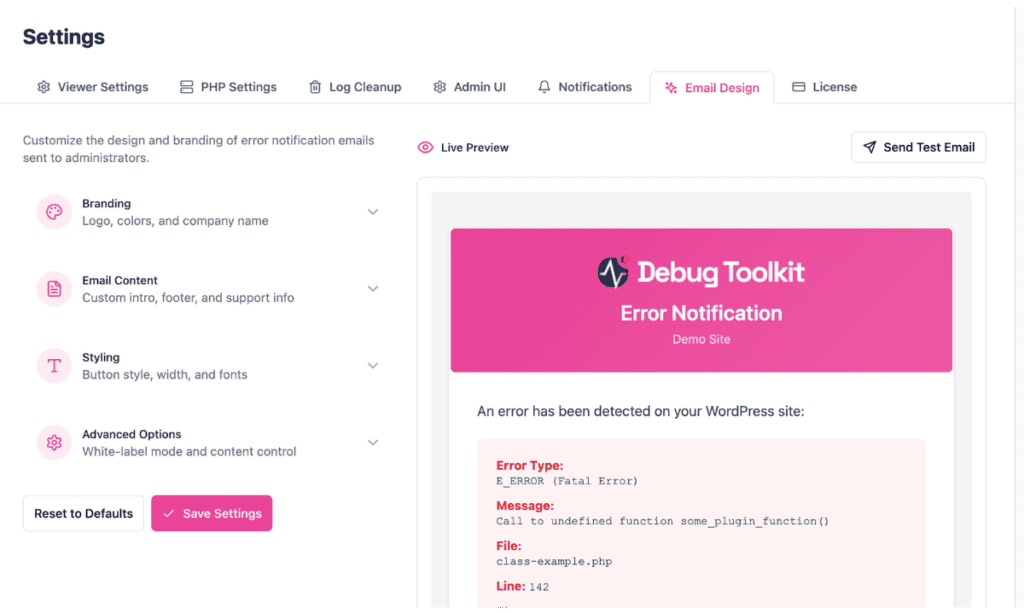
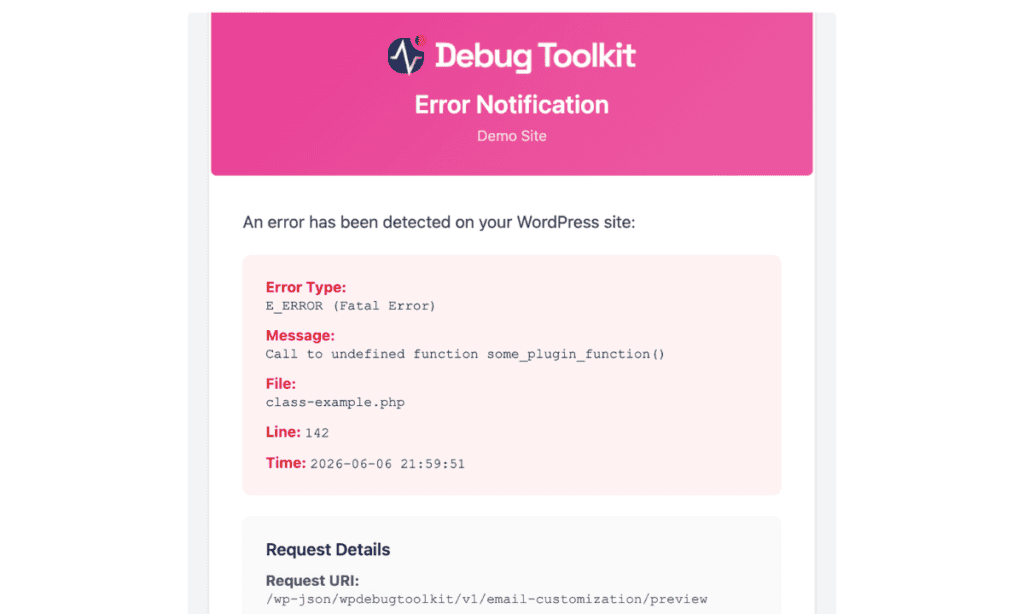
The Live Preview shows a complete sample notification email. The header displays your logo and brand color with the Error Notification heading and your company name, or your site name if no company name is configured, beneath it.
Below the header: an intro line, an error details box showing Error Type, Message, File, Line, and Time, a Request Details section, a Fatal Error Detected section with an Enter Recovery Mode button, a View Error Logs button, a tip callout referencing the standalone viewer, and a footer crediting WP Debug Toolkit Pro (if you have not enabled White-Label Mode).
Change any setting in the left panel and the preview updates immediately on the right without requiring a page reload or save action.
You should use this feature to verify your branding, colors, button style, and layout before committing to an email design. The preview reflects your current form state in real time.
Click Send Test Email in the header of the Live Preview panel. WPDT sends a sample notification to your WordPress admin email address using your current form settings, including any changes you have not yet saved.
When the email is delivered, a green confirmation notice appears: “Test email sent! Check your inbox.” The notice auto-dismisses after five seconds. If delivery fails, a red error notice appears in its place.
Check both your inbox and spam folder. When the email arrives, confirm the following:
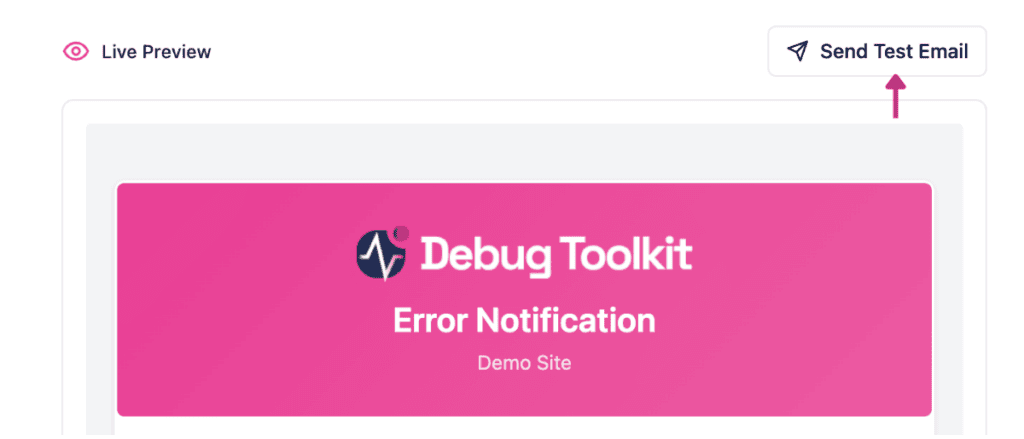
✅ What You Should See The test email arrives with your configured logo and brand color in the header and your company name or site name displayed beneath it. The error details box shows the fixed sample error data with your selected layout and fonts. Optional sections appear or are absent based on your current settings.
The Live Preview renders inside a modern browser engine, which follows current CSS standards. Outlook, older versions of Gmail, and many mobile email clients apply their own rendering rules; for example, buttons may display differently, images may be blocked by default, and wide layouts can collapse or overflow at narrow widths.
The Send Test Email step exists specifically to surface these differences before a real error triggers a live notification. For the broadest compatibility across clients, the Standard width setting and either the Gradient or Solid button style tend to render most consistently.
Likely cause: WordPress wp_mail() is not delivering outbound email on your host, or the message is being caught by a spam filter.
Fix: Check your spam folder first. Then verify that other WordPress transactional emails, such as password reset or new user notifications, are delivering normally. If those are failing as well, your host’s mail configuration is the problem. Install and configure an SMTP plugin to route outbound email through a reliable mail service.
Also check whether a red error notice appeared in the UI after you clicked. WPDT rate-limits the test send: clicking Send Test Email more than once within 60 seconds returns a notice telling you how many seconds to wait before trying again. A separate global limit of 10 test sends per 60 seconds applies across all users. If that limit is reached, the notice reads “Too many test emails being sent. Please try again in a minute.” If either message appeared, no email was dispatched and no mail configuration issue is involved.
Likely cause: The email client is applying its own CSS rules over the HTML WPDT generates.
Fix: Test in multiple email clients to understand the scope of the differences. Switching to Standard width and a Gradient or Solid button style resolves most common rendering inconsistencies across Outlook, Gmail, and mobile devices.
Partially. The error details, including Error Type, Message, File, and Line, use fixed sample data: a hardcoded fatal error calling some_plugin_function() in a sample plugin file at line 142. The Time field reflects the real timestamp at the moment you send the test, and the Request Details section (Request URI, Referrer, and User ID) reflects your actual server environment and session at that moment. The Request URI will show the internal API endpoint WPDT calls to generate the preview, not a URL from your site’s traffic.
Note that the Notifications page also has a Send Test Email button. That test works differently: it sends to the address configured in your notification settings, uses a live E_USER_NOTICE triggered from within the plugin itself, and does not apply your Email Design customization settings.
No. The test email uses your current form state, including any unsaved changes. What you see in the Live Preview and what the test email delivers are built from the same settings. Click Save Settings when you are ready to apply those settings to live notification emails.
Email Template Customization – Configure every setting the test email reflects, including logo, colors, button style, and footer text.
Setting Up Notifications – Set your recipient address and error levels before live alerts are sent.
