
The WP Debug Toolkit (WPDT) WordPress error logs Viewer App is protected by mandatory password authentication, progressive login rate limiting, session IP binding, CSRF token validation, and a blocked-files list. These protections operate automatically on every installation. The only settings you configure are the viewer password and, optionally, whether IP binding is active. Navigate to WP Debug Toolkit › Settings › Viewer Settings to manage both.
Seven independent security mechanisms protect the WordPress error logs Viewer App. They activate in sequence from the moment a request reaches the Viewer login page, and they operate entirely outside the WordPress authentication system.
Password protection is mandatory. There is no configuration to disable it, and WP Debug Toolkit has enforced this requirement since version 1.1.0. The minimum password length is eight characters.
WPDT stores the password hash in auth.php inside the Viewer directory, not in the WordPress database. This design is intentional, as a tool built to diagnose database failures cannot depend on the database to authenticate.
When the WordPress database is offline, auth.php remains readable, and the Viewer login screen remains functional.
WPDT applies escalating lockout delays after each consecutive failed login attempt, enforced per IP address. After a successful login, the counter resets for that IP.
| Failed Attempts | Lockout Duration |
|---|---|
| 1 | 0 seconds |
| 2 | 5 seconds |
| 3 | 30 seconds |
| 4 | 5 minutes |
| 5 | 30 minutes |
| 6-9 | 1 hour |
| 10+ | 24 hours |
Rate limiting data is stored in a SQLite database (rate-limit.db) inside wp-content/debug-toolkit-cache/, outside the viewer web root.
When the server’s PDO SQLite extension is unavailable, WPDT falls back to a file-based JSON rate limiter (rate-limit.json in the same directory), so rate limiting operates on every hosting environment regardless of PHP extension availability.
A second layer addresses rotating-IP brute-force attacks that bypass per-IP counters. If 100 or more failed attempts accumulate across all IP addresses within 24 hours, WPDT activates a global slow mode that enforces a minimum 60-second delay between any login attempt from any IP. Global slow mode never causes a permanent lockout.
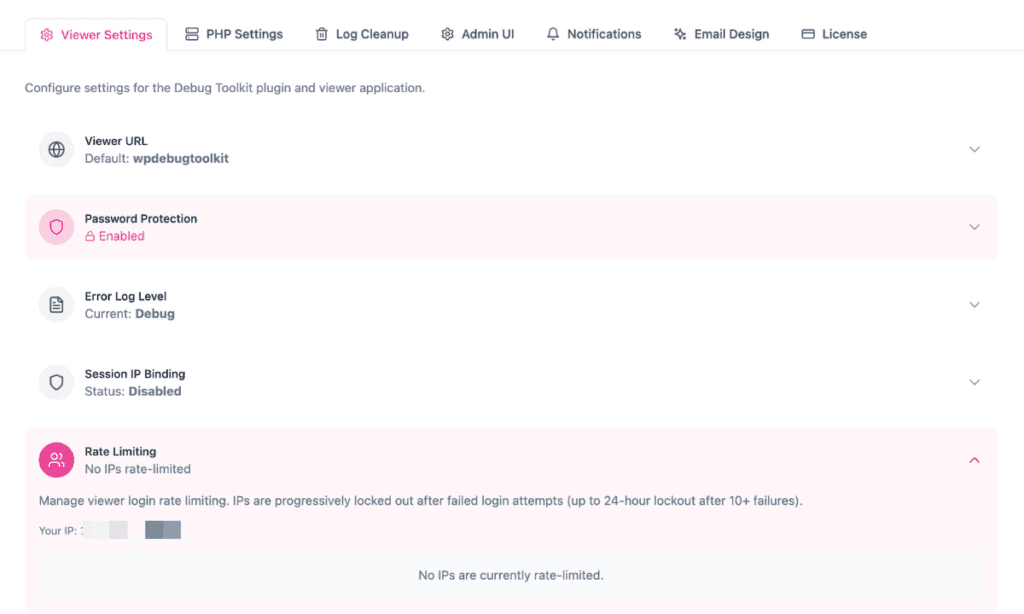
To unblock a rate-limited IP before the lockout expires, log in to wp-admin, navigate to WP Debug Toolkit › Settings › Viewer Settings, and expand the Rate Limiting accordion. The Clear Rate Limits action unblocks a specific IP or all currently limited IPs immediately.
After a successful login, WPDT creates a session with four enforced properties.
Timeout: Sessions expire after 30 minutes of inactivity. After expiration, the viewer redirects you to the login screen.
IP binding: Cookie-based sessions are tied to the IP address that authenticated. A request from a different IP invalidates the session immediately. In environments where proxies or CDNs strip cookies, the viewer falls back automatically to a bearer-token path. Bearer tokens are not IP-bound. A 15-minute expiry limits the replay window instead.
Session fixation prevention: WPDT regenerates the session ID on login, so a token captured before authentication cannot be reused after it.
Secure cookies: Cookies are set with httponly, secure (on HTTPS), and samesite=Strict flags.
The IP binding preference is stored in a separate SQLite database (viewer-settings.db) in wp-content/debug-toolkit-cache/. Both the WordPress admin and the standalone viewer read this setting independently, so a change made in wp-admin takes effect in the viewer without requiring a viewer reinstall.
Authentication events, including failed logins, IP mismatches, and session timeouts, are written to the same WordPress error log that the viewer displays. They appear as entries in the WordPress Error Log Viewer alongside PHP errors and notices, prefixed with their event type (for example, “Authentication failed for IP …: Invalid password” or “IP mismatch for session.”).
WPDT generates a CSRF token when the session starts and includes it in every mutating request from the Viewer’s React frontend. State-changing actions like modifying settings, toggling debug constants, and disabling plugins require a valid token. Requests without a valid token are rejected with a 403 response.
The Viewer API validates all file path parameters against an allowed-directory list. Requests targeting files outside the configured log directory and WordPress installation paths are blocked before any content is read.
The API also maintains an explicit blocklist of sensitive files that are never served, regardless of the request path:
wp-config.php

secure-debug.php       # GridPane debug configuration

.htaccess

.htpasswd

.env

id_rsa

id_dsa

.ssh

config.php             # viewer configuration

auth.php               # viewer password hash

rate-limit.db          # rate limiter SQLite database

rate-limit.json        # rate limiter JSON fallback store

viewer-settings.db     # viewer settings SQLite database

.git                   # directories (matched by path pattern)

.sqlite                # files (matched by extension pattern)
Requests for any blocked file return 403 with no file content.
The viewer API sets six security headers on every response:
| Header | What It Prevents |
|---|---|
X-Content-Type-Options: nosniff | MIME type sniffing by the browser |
X-Frame-Options: DENY | Embedding the viewer in an iframe |
X-XSS-Protection: 1; mode=block | Reflected XSS execution in older browsers |
Referrer-Policy: strict-origin-when-cross-origin | The viewer URL leaking via the Referrer header |
Content-Security-Policy: default-src 'none'; frame-ancestors 'none' | All resource loading from any source, including scripts, styles, images, and network requests, are blocked by default |
Cache-Control: no-cache, no-store, must-revalidate | Browser or proxy caching of API responses |
The Viewer API accepts only a defined set of recognized action names. WPDT rejects any request with an unrecognized action with a 400 response. Action names are sanitized to allow only lowercase alphanumeric characters, hyphens, and underscores. This prevents request forgery through action name manipulation.
Log content displayed in the Viewer is filtered before rendering to redact WordPress database credentials, authentication keys, and salts.
✅ Key Guarantees
auth.php independently of WordPress, so it remains accessible when the WordPress database is offline or unreachable.auth.php. The new password takes effect immediately for any new login attempt.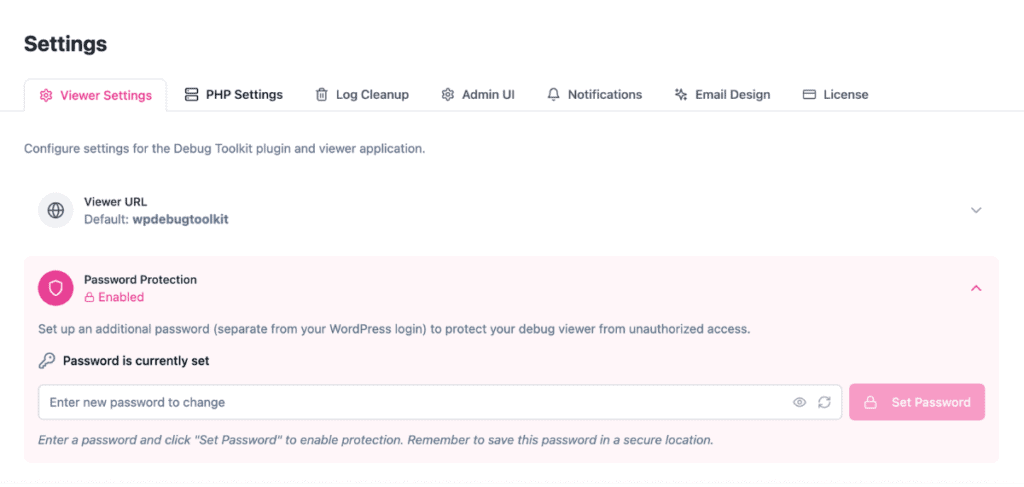
⚠️ Warning: Changing the Viewer password prevents any new login with the old password immediately. It does not terminate sessions that are already active. Anyone currently authenticated remains so until their session expires: cookie sessions time out after 30 minutes of inactivity, and bearer tokens expire after 15 minutes.
WP-CLI alternative:
bash
# Update the viewer password; preserves all existing configuration
wp dbtk viewer setup –password=new-secure-password
This command hashes the new password, stores it, and writes the updated auth.php. If the WordPress error logs Viewer is already installed, no Viewer files are overwritten; only the password hash and auth file are updated. If the Viewer is not yet installed, this command performs a full installation.
Some environments change the client IP address legitimately during a session, including certain proxy configurations, mobile networks, and VPN failover setups. If you experience repeated unexpected logouts not caused by inactivity, IP binding is the likely cause.
From wp-admin:
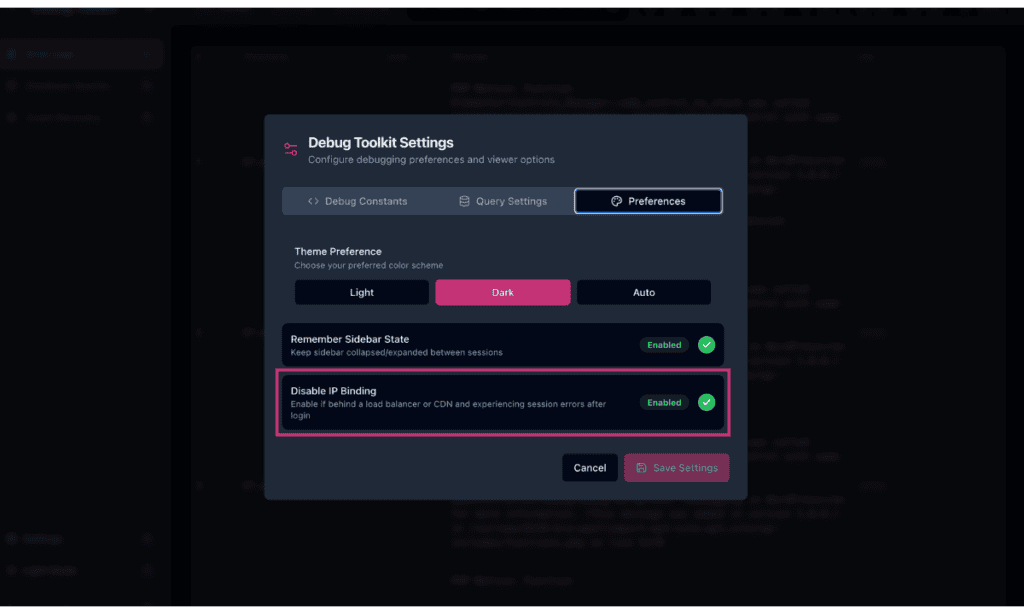
From inside the Viewer:
Both paths write to viewer-settings.db in wp-content/debug-toolkit-cache/ and take effect immediately.
⚠️ Warning: Disabling IP binding reduces session security by allowing a session token to be used from any IP address. Disable it only when repeated logouts confirm that IP changes are the cause.
| Setting | What It Does |
|---|---|
| Password Protection | Always enabled. There is no option to disable password protection; the Viewer requires a password on every installation. This section displays the current protection status and provides the interface for changing the Viewer password. The hash writes to auth.php in the Viewer directory, not the WordPress database. |
| Session IP Binding | Enabled by default. When active, any request from an IP address different from the authenticated one invalidates the session immediately. Disable this setting in proxy, mobile, or VPN environments where the client IP changes legitimately mid-session. The preference is stored in viewer-settings.db and read independently by the standalone Viewer. |
| Rate Limiting | Active automatically on all installations. Displays the count of currently rate-limited IP addresses and provides the Clear Rate Limits action to unblock a specific IP or all IPs before their lockout period expires. The lockout escalation schedule is fixed and cannot be configured from this panel. |
Likely cause: Your IP address reached the 10-attempt threshold and is locked out for 24 hours.
Fix: Log in to wp-admin, navigate to WP Debug Toolkit › Settings › Viewer Settings, and expand the Rate Limiting accordion. Use the Clear Rate Limits action to unblock the IP immediately. If you cannot access wp-admin, wait for the 24-hour lockout to expire.
Likely cause: Session IP binding is invalidating your session because your client IP changes between requests. This is common on mobile networks, VPN configurations with failover, and some reverse proxy setups.
Fix: Press K to open the Viewer Settings panel and toggle Disable IP binding to ON under Preferences.
Likely cause: A server-level rule, such as a ModSecurity signature or a Cloudflare WAF policy, is blocking the request before it reaches the Viewer.
Fix: Add a WAF exception for the Viewer URL and verify the rule is not also blocking the Viewer API path. Check your server error logs to identify the specific rule triggering the block.
No. The Viewer uses an independent password stored as a hash in auth.php inside the Viewer directory. It has no connection to any WordPress user account or the WordPress authentication system. This independence ensures the Viewer App remains accessible even when the WordPress database is unavailable.
Yes. Multiple sessions can be active simultaneously using the same password. Session IP binding applies independently to each session. Each authenticated user is bound to their own IP address, rather than to a shared session.
No. The viewer authenticates against the hash in auth.php using its own session management, entirely independent of the WordPress session and cookie system. This means the viewer remains accessible even when WordPress cannot load and the wp-admin login screen is unreachable.
Custom Viewer URL – Change your viewer’s directory slug from the Viewer Settings tab without touching the authentication setup documented here.
Managing the WordPress Error Logs Viewer App – Need to reset the viewer password, remove the viewer, or fix permissions after a server move? All three operations live here.
WordPress Error Logs Viewer App Overview – Understand why the viewer’s authentication runs outside WordPress entirely, and why that matters the moment your site goes down.
