
When a fatal PHP error occurs, WP Debug Toolkit (WPDT) intercepts the WordPress recovery mode email and replaces it with its own branded notification. That notification includes full error details, a link to the standalone Viewer App, and a recovery mode button that returns you to wp-admin with the offending code paused. The Viewer App link works even when WordPress is completely down, giving you immediate error log access before you attempt to log back in.
Since WordPress 5.2, when a fatal PHP error prevents your site from loading, WordPress catches the error, pauses the responsible plugin or theme, and emails the site admin a temporary login link.
That link bypasses the paused component and lets you access wp-admin to deactivate or update it. Recovery mode is standard WordPress behavior, and WPDT builds on it by intercepting that email and replacing it with a richer notification that includes full diagnostic context and a direct link to the Viewer.
Two components work together to intercept and upgrade the recovery flow: the fatal error handler drop-in and the MU-plugin.
WPDT installs a custom drop-in, fatal-error-handler.php, to wp-content/fatal-error-handler.php. The drop-in extends WordPress’s built-in WP_Fatal_Error_Handler class. Its job is ensuring WPDT’s notification system captures every fatal PHP error, including error types that never trigger WordPress’s own recovery email.
When a fatal error occurs, the drop-in lets WordPress complete its own error handling first, then passes control to WPDT’s notification system.
The email interception is handled by the MU-plugin. It hooks into WordPress’s recovery email process and replaces the default plain-text notification with WPDT’s branded HTML email, preserving the same recovery URL so WordPress correctly identifies the offending plugin or theme when you click through.
If WPDT’s email fails to send, WordPress’s plain-text recovery email is delivered as a fallback. When the notification module is active, that fallback also includes a plain-text link to your Viewer App.
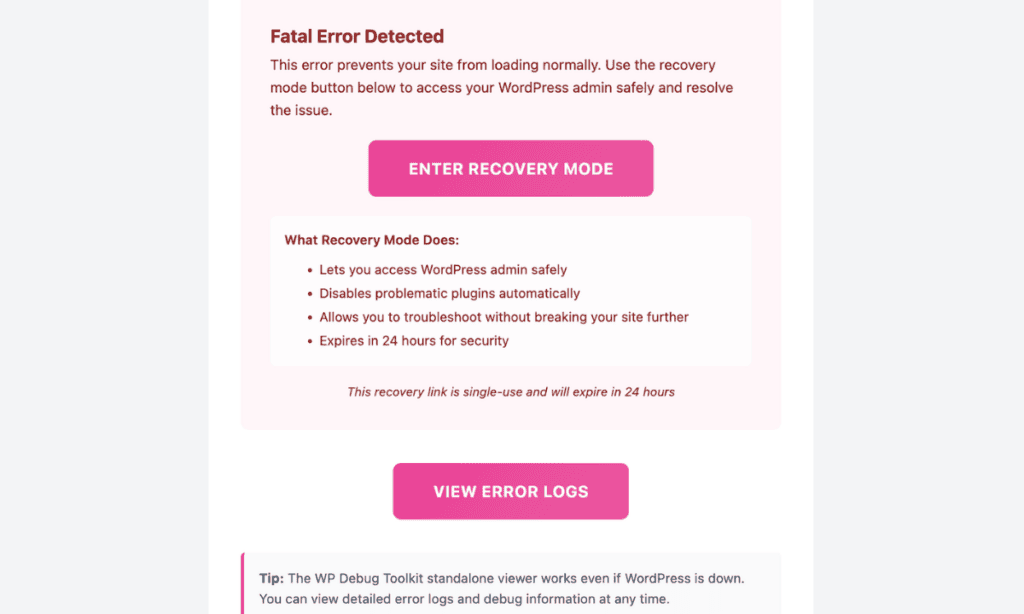
A fatal error sends one email to your inbox, and this is WPDT’s custom-branded notification. It contains the error type, message, file path, line number, request URI, and timestamp.
For recoverable fatal errors, it also includes a recovery section with a button to re-enter wp-admin while the offending plugin or theme is paused, plus a View Error Logs button that links directly to the standalone Viewer App.
The email subject follows the format: [Your Site Name] E_ERROR (Fatal Error) detected.
Note: The branded HTML notification described above requires the MU-plugin to be installed. If you have not installed the MU-plugin, you receive WordPress’s standard plain-text recovery email instead, with a plain-text link to your Viewer App appended automatically. To receive the full WPDT notification with error details, the recovery button, and the Viewer App link in a single HTML email, install the MU-plugin from WP Debug Toolkit › Settings › Notifications › Must-Use Plugin.
✅ What You Should See: One email arrives after a fatal error with the subject [Your Site Name] E_ERROR (Fatal Error) detected. It contains the error details block at the top, followed by the recovery section with the Enter Recovery Mode button, then a View Error Logs button linking to the Viewer App below it.
Before clicking the recovery mode button, open the Viewer App by clicking View Error Logs in the email. The Viewer App operates independently of WordPress and does not require a wp-admin login. It displays your current error log even if WordPress is in a fatal error loop, your database is unavailable, or wp-admin will not load.
✅ What You Should See: The Viewer App loads your current error log and shows the most recent fatal error at the top, including its timestamp, error type, file path, and line number.
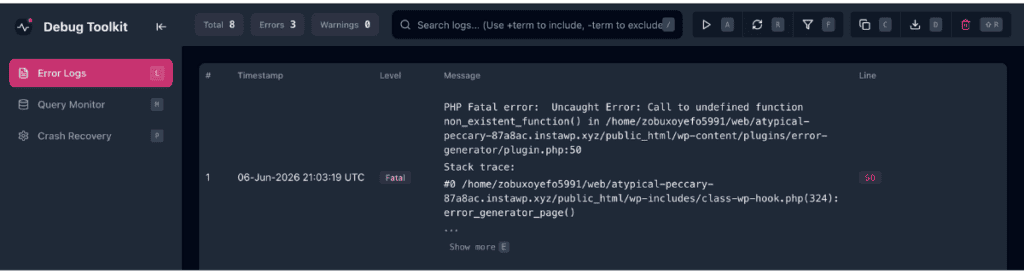
Identify the offending file and line number from the error log. The email’s error details block repeats the same information, so you can pinpoint the source before you click through to wp-admin.
Click Enter Recovery Mode in the email’s recovery section to access wp-admin with the offending plugin or theme paused. Once inside, deactivate or update the component you identified in Step 2. The recovery link is single-use and expires in 24 hours.
✅ What You Should See: WordPress loads wp-admin in recovery mode. If it successfully identified the offending extension, the affected plugin or theme appears in your Plugins or Themes list with a Resume option visible.
Yes. When the WPDT MU-plugin is installed, WPDT intercepts the recovery_mode_email filter, sends its own branded notification using WordPress’s recovery URL, and suppresses the original WordPress email. If the WPDT notification fails to send, WordPress’s plain-text recovery email is delivered as a fallback. When the notification module is active, that fallback also includes a plain-text link to your Viewer App.
WPDT includes the Viewer App link in the notification email regardless of whether the Viewer App is installed. If the viewer is not installed, the View Error Logs button will not load. Install the Viewer App before a crash occurs to make that link functional when you need it.
Yes. Navigate to WP Debug Toolkit › Settings › Email Design and expand Email Content. The Recovery Button Text field controls the label on the recovery button, and the optional Recovery Description field sets the text that appears above it. Both fields apply directly to the WPDT notification email you receive after a fatal error.
Email Notifications Overview – Understand the full Site Monitor notification system, including the MU-plugin architecture that powers the notification email you receive after a fatal error.
Out of Memory Errors – Learn how WPDT catches and alerts you to memory exhaustion crashes, including the 256KB memory reservation that keeps the notification firing even when PHP runs out of memory mid-request.
Email Template Customization – Customize the branding, layout, and recovery button text on the notification email WPDT sends after a fatal error.
