
Navigate to your WP Debug Toolkit (WPDT) Viewer App URL (for example, https://yoursite.com/wpdebugtoolkit/) and enter your viewer password. Because the Viewer App operates independently of WordPress, it remains accessible when WordPress is fully down. From there, the Error Logs view opens by default; read the fatal error, use the File Viewer to confirm the responsible component, and use Crash Recovery to isolate it at the filesystem level. You do not need FTP or SSH access for this.
Your site’s main URL returns a white screen, a “There has been a critical error on this site” message, or no response at all. The WordPress admin URL may also be inaccessible. In these states, the standard WordPress interface is unavailable for diagnosis.
Three tools in this guide provide a path forward. The standalone Viewer App reads your error log without going through WordPress; the File Viewer shows you the code at the exact file and line the error flagged; Crash Recovery isolates the responsible plugin or theme at the filesystem level, directly from the viewer interface. This guide walks you from a fully inaccessible site to a restored WordPress installation without FTP.
| WPDT Tool | Role in This Guide |
|---|---|
| Standalone Viewer (Error Logs view) | Provides access to the error log even when WordPress cannot load. This is the starting point for identifying the crash cause |
| File Viewer | Shows the exact PHP code at the file and line number flagged in the error log, confirming which component is responsible |
| Crash Recovery | Isolates the responsible plugin or theme at the filesystem level directly from the viewer, without requiring wp-admin access |
Navigate to your viewer URL and enter your viewer password. If you received a WPDT error notification email, it includes a View Error Logs button that opens the Viewer homepage; use it. Otherwise, navigate directly to your viewer URL (for example, https://yoursite.com/wpdebugtoolkit/ or the custom slug you configured during setup) and enter your viewer password.
The password is stored in auth.php on the server’s filesystem, not in the WordPress database; as such, a database crash does not prevent you from logging in.
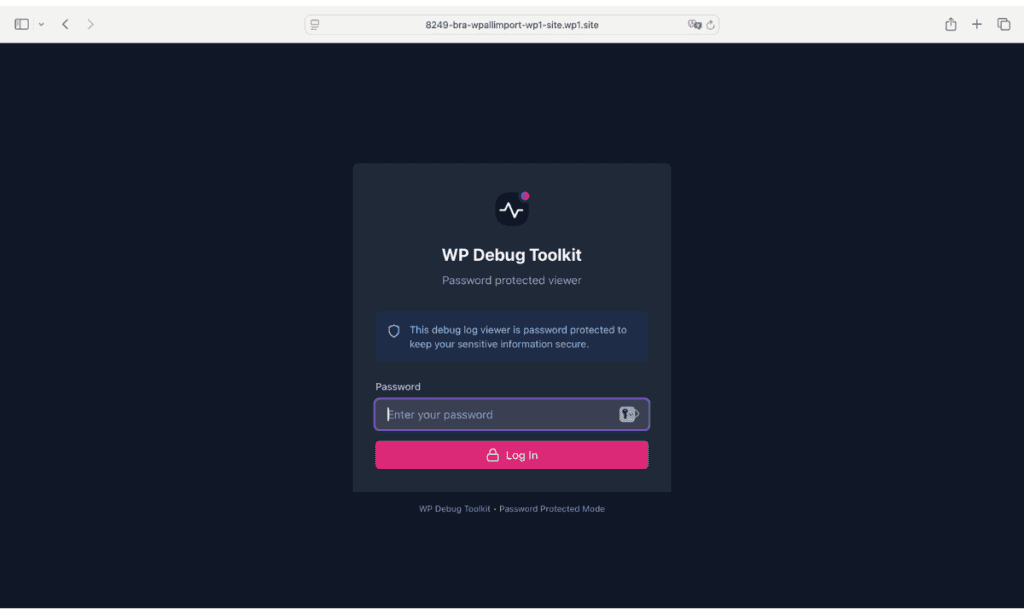
✅ What You Should See: The Viewer App loads its main interface and opens directly to the Error Logs view. The viewer does not display any WordPress connectivity warning or status indicator when WordPress is down. It operates independently and loads normally regardless of WordPress’s state.
🔀 Decision Point: If the Viewer App Is Not Installed: If the Viewer App is not installed and WordPress is completely down, WPDT cannot help directly. The Viewer App cannot be installed retroactively on a crashed site.
Your options at this point are:
wp-content/debug.log directly. Most SSH clients and SFTP tools allow you to open and read log files without needing WordPress to load. Look for a PHP Fatal error line near the bottom of the file.After restoring access, install the Viewer App before the next potential crash. See Setting Up the WordPress Error Logs Viewer App for the full setup process.
The Viewer App opens to Error Logs by default after authentication. If you have navigated away, press L to return to it.
To locate the fatal error, press F to access the filter and open the All Levels filter, then select Fatal. This narrows the log to fatal error entries only and removes the noise of warnings and notices. Alternatively, scroll through the log and look for entries with a Fatal badge; the entry you need will include a timestamp that matches when your site went down.
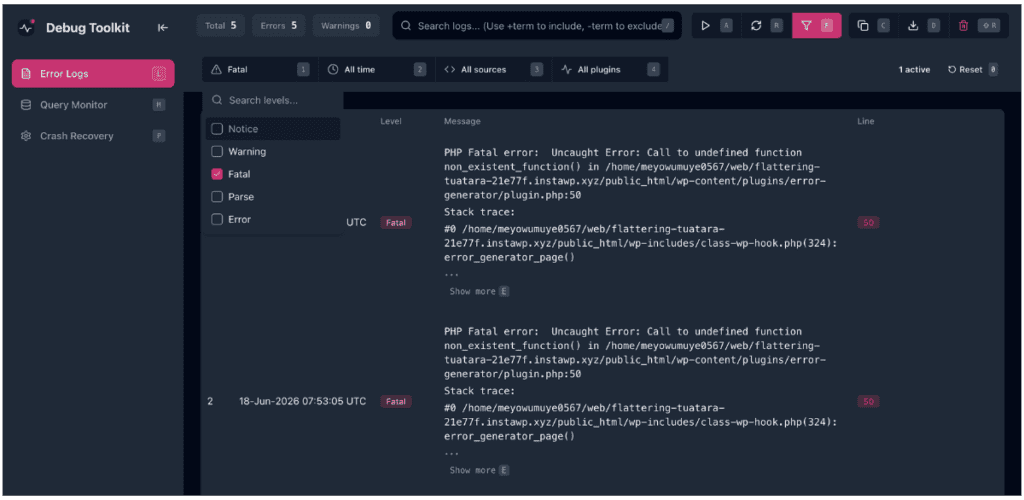
✅ What You Should See: One or more entries labeled Fatal, each showing an error message, a file path, and a line number. The file path will identify the responsible component by its directory name under wp-content/plugins/ or wp-content/themes/.
With the fatal error entry located, hover your cursor over the row and press Q to open the File Viewer for the file and line number shown in the entry. The File Viewer loads the PHP file and highlights the exact line where the error occurred, confirming whether the error originates in the plugin’s or theme’s own code rather than in a dependency.
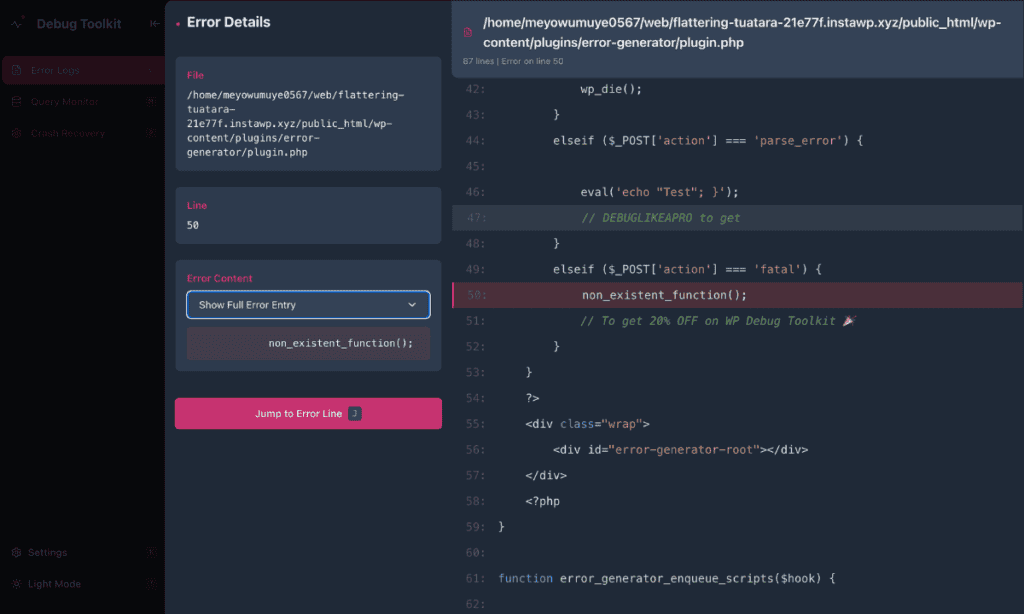
🔀 Decision Point: If the Error File Path points to wp-content/mu-plugins/, Crash Recovery cannot isolate must-use plugins. The isolation mechanism renames plugin and theme directories, and wp-content/mu-plugins/ falls outside its scope. You will need SSH or SFTP access to rename or remove the MU-plugin file manually. Once you have done so, test whether the site loads before proceeding.
Press P to open the Crash Recovery panel. Navigate to the Plugins or Themes tab based on where the fatal error’s file path pointed. Locate the responsible component by matching its directory slug to the file path you identified in Phase 2. Select it to isolate it.
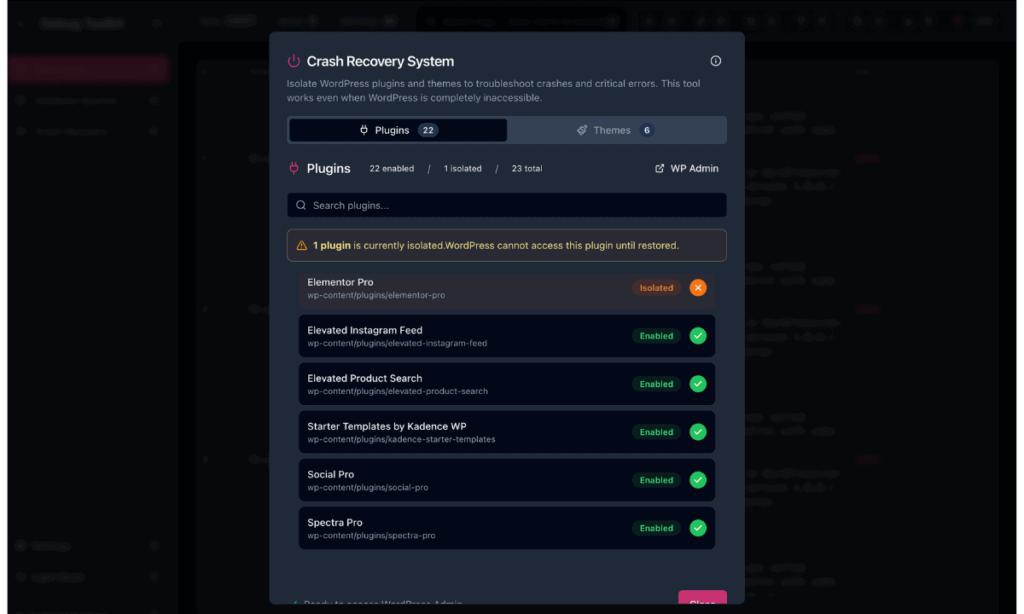
✅ What You Should See: The component displays an Isolated badge and an alert banner appears. The counter in the content header next to the Plugins or Themes title updates; for example, “2 enabled / 1 isolated / 3 total.”
To verify that the site has recovered, click the WP Admin link in the top right of the Crash Recovery panel. If WordPress now loads and the wp-admin dashboard is accessible, the responsible component has been successfully isolated.
Do not restore the isolated component from the Crash Recovery panel before resolving the fault. Restoration re-enables the component immediately and will crash the site again.
With the component isolated, WordPress loads normally and wp-admin is accessible. Go to wp-admin to update, reinstall, or delete the responsible component as you would under normal circumstances. Once you have resolved the fault, the component can be safely restored from the Crash Recovery panel if needed.
No. The Viewer App must be installed before a crash occurs, as it cannot be installed retroactively on a crashed site. If your site is down and the Viewer App is not deployed, connect via SSH or SFTP and read wp-content/debug.log directly, or check your hosting control panel for PHP error logs. After restoring access, install the Viewer App before the next potential crash. See Setting Up the WordPress Error Logs Viewer App for more.
Crash Recovery cannot isolate must-use plugins. The tool works by renaming plugin and theme directories, and wp-content/mu-plugins/ is outside its scope. You will need SSH or SFTP access to rename or remove the MU-plugin file manually. Once you have done so, test whether the site loads.
There are no permanent inconsistencies that result from isolating a plugin in the Viewer App. WordPress detects the missing plugin directory the next time wp-admin loads and automatically removes the plugin from active_plugins in the database. You do not need to clean up the database record manually.
Setting Up the WordPress Error Logs Viewer App – Install the standalone Viewer App now, before a crash happens. This article walks you through the full setup process.
Crash Recovery – Full reference for the Crash Recovery System, including the Plugins and Themes tabs, limitations, and how to restore an isolated component.
WordPress Recovery Mode Integration – Covers what arrives in your inbox when a fatal error occurs, what the recovery email gives you access to, and how WPDT enhances it.
