
WP Debug Toolkit’s (WPDT) built-in WordPress error email notification system, an MU-plugin paired with a fatal error drop-in, sends rate-limited email alerts when PHP errors occur on your site. Configure the entire setup from WP Debug Toolkit › Settings › Notifications without having to touch a single line of code. Two-layer rate limiting, a per-error cooldown plus a Max Emails Per Hour cap, keeps your inbox from flooding during an error storm.
PHP errors in WordPress can sit unnoticed for days. A plugin update breaks a function, a host upgrades PHP and a deprecated call starts failing, and nobody finds out until a client or site visitor reports a broken page.
Email notifications close that gap by alerting you the moment a qualifying error occurs on your WordPress site. You could write a manual error handler with set_error_handler() or run a third-party application monitoring service, but WPDT’s built-in system handles rate limiting, error level filtering, and email templating without additional setup or accounts.
WPDT’s notification system depends on two components working together: wpdebugtoolkit-notifications.php, an MU-plugin that loads before regular plugins, and wp-content/fatal-error-handler.php, a drop-in that extends WP_Fatal_Error_Handler and requires WordPress 5.2 or later.
WPDT installs both when you click Install MU-Plugin in the Must-Use Plugin section of Debug Toolkit › Settings › Notifications. Installation requires wp-content/mu-plugins/ to be writable, so if the button fails, that is the first thing to check. If the section already shows the MU-plugin as installed, skip to Step 2. For the full install walkthrough with screenshots, see Setting Up Notifications.
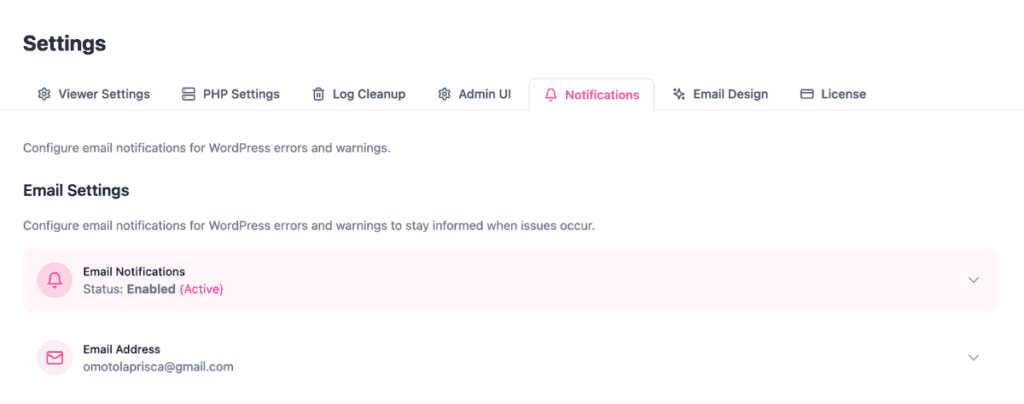
In the Email Settings section of the Notifications page, expand Email Notifications and click Enable Email Notifications. This activates the error handler in the MU-plugin. With it off, the MU-plugin loads but does not process or send notifications.
In the Email Address field, enter the address where you want alerts sent. WPDT defaults to your WordPress admin email. Enter any single address where you want alerts delivered, which could be a team inbox, a shared monitoring address, or a dedicated address for the particular site you are working on.
Expand Error Levels and click Select Recommended to apply WPDT’s production-ready preset.
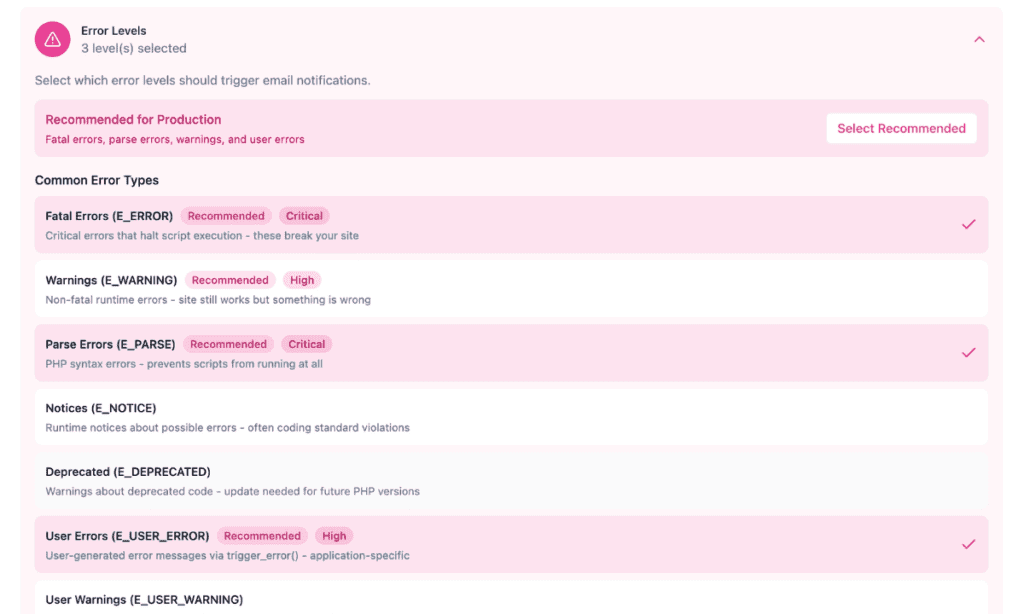
This selects four levels that indicate real problems:
| Level | What It Means |
|---|---|
E_ERROR | Fatal runtime error, execution stops |
E_PARSE | Syntax error, PHP cannot parse the file |
E_WARNING | Non-fatal runtime warning, execution continues, but something is wrong |
E_USER_ERROR | User-triggered fatal error via trigger_error() |
Avoid adding E_NOTICE or E_DEPRECATED on a production site, as most plugin ecosystems generate high volumes of these, and they’re harmless in the short term.
Expand Rate Limiting. WPDT applies two independent controls:
Per-Error Cooldown sets the minimum time between emails for the same error. Errors are identified by a hash of their type, normalized message, file, and line number; therefore, the same message on a different line counts as a separate error, and stack trace noise is stripped before comparison. The available presets are: 15 min, 30 min, 1 hr, 6 hr, 12 hr, 24 hr. The default is 1 hour.
Max Emails Per Hour caps how many fatal-error notification emails are sent in any rolling 60-minute window. Available presets: 5, 10, 20, 50, 100. The default is 10. Non-fatal errors (warnings, notices, and deprecations) are batched into a single email per occurrence and have a separate fixed limit of 5 per rolling hour, regardless of this setting.
These two limits operate independently. A fatal error that clears its per-error cooldown can still be suppressed by the Max Emails Per Hour cap if enough other fatal errors have already fired in the same 60-minute window. For the full explanation of how these interact and tuning guidance for different traffic levels, see Rate Limiting and Alert History.
Click Send Test Email and check both your inbox and your spam folder to confirm delivery.
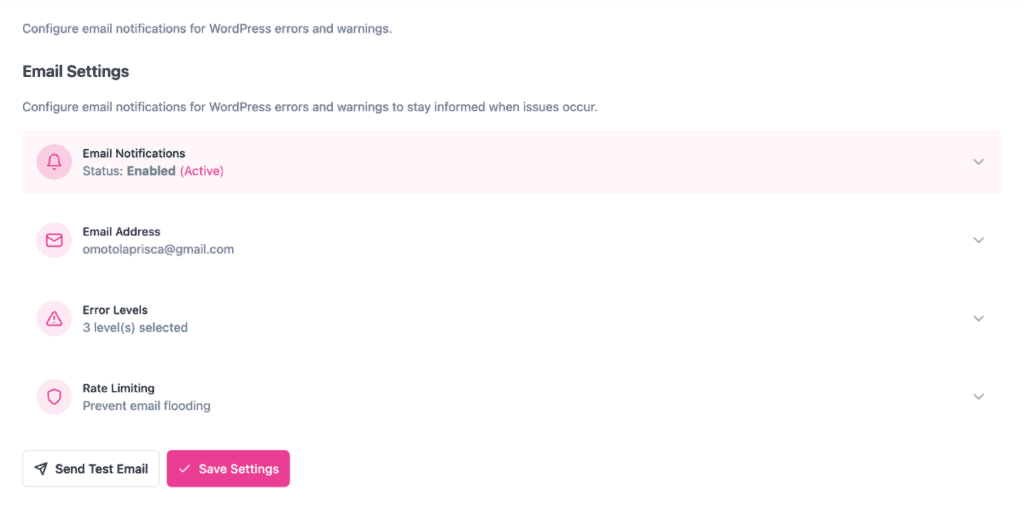
Click Save Settings to apply your configuration.
A test email confirms delivery, but does not confirm WPDT is catching real errors at the levels you selected. On a staging site, add the following to functions.php temporarily:
php

// Temporary test trigger - remove after verifying notification delivery

add_action( 'init', function() {

    if ( isset( $_GET['wpdt_test_error'] ) ) {

        trigger_error( 'WPDT notification test error', E_USER_ERROR );

    }

} );
Visit your staging site with ?wpdt_test_error=1 appended to the URL. If E_USER_ERROR is in your monitored levels, a notification email should arrive within seconds. Remove the test code once you’ve confirmed delivery.
✅ What You Should See: A notification email arrives in your inbox within seconds of triggering the error, containing the error message, file location, and a link to open the standalone Viewer App.
When a recoverable fatal error occurs (E_ERROR, E_PARSE, or E_USER_ERROR), WPDT intercepts WordPress’s recovery mode email via the recovery_mode_email filter and replaces it with its own branded version. The replacement email uses WordPress’s own recovery URL, so extension tracking still works correctly, but the email itself contains WPDT’s diagnostic content. WordPress’s original recovery email is suppressed so you receive a single email, not two. For the full mechanism, see WordPress Recovery Mode Integration.
WPDT sends notifications through WordPress’s wp_mail() function. If wp_mail() doesn’t work on your site, notifications won’t send regardless of how your settings are configured. WordPress defaults to PHP’s mail() function, which many hosts block or limit. Installing an SMTP plugin such as WP Mail SMTP, FluentSMTP, or Post SMTP routes outgoing mail through a real mail server and resolves most delivery failures.
If notifications arrive but land in spam, the most common cause is missing SPF, DKIM, or DMARC records on your sending domain. Configuring these through your SMTP plugin or DNS provider significantly improves inbox placement.
Some shared hosts cap outgoing email at 100 to 500 messages per hour across all sources, including order confirmations, contact form submissions, and notification emails combined. If your site is close to that limit, keep WPDT’s Max Emails Per Hour cap conservative to leave room for other site emails.
Check these in order: confirm Email Notifications is enabled, confirm the MU-plugin is installed under Must-Use Plugin, confirm wp_mail() is working on the site (an SMTP issue is the most common culprit; see Email Deliverability above), and confirm the error’s level is included in your monitored levels.
To reduce fatal-error emails, lower the Max Emails Per Hour cap or increase the Per-Error Cooldown. To reduce non-fatal volume, remove E_WARNING from your monitored levels. Warning batches have a separate fixed cap of 5 per hour that the Max Emails Per Hour setting does not control. See Rate Limiting and Alert History for tuning guidance.
Configure SPF and DKIM records for your sending domain; use a recognizable “From” name and an address on your own domain via an SMTP plugin; and consider disabling the stack trace section in the email template if its technical content is triggering spam filters.
Three things can prevent WPDT’s MU-plugin from processing fatal errors: a conflicting fatal-error-handler.php from another plugin or your host, a WordPress version below 5.2, or a host that has set WP_DISABLE_FATAL_ERROR_HANDLER to true in wp-config.php. If your host has set that constant, add define( 'WPDT_FORCE_ERROR_NOTIFICATIONS', true ); to wp-config.php to override it. For the drop-in conflict, check the contents of wp-content/fatal-error-handler.php to confirm it belongs to WPDT; only one drop-in can be active at a time.
No. WPDT intercepts the WordPress recovery mode email via the recovery_mode_email filter and replaces it with its own branded version. You receive one email per fatal error, not two. If WPDT fails to send its version for any reason, WordPress’s original recovery email goes through as a fallback.
No. WPDT sends through wp_mail(), and if email is broken site-wide, no notifications send regardless of your WPDT configuration. Fix site-wide email delivery first, typically by installing an SMTP plugin, then configure WPDT notifications.
Setting Up Notifications – Get the full UI walkthrough with screenshots for every setting covered in the steps above.
Rate Limiting and Alert History – See exactly how the Per-Error Cooldown and Max Emails Per Hour controls interact, with tuning guidance for different traffic levels.
WordPress Recovery Mode Integration – Find out how WPDT replaces WordPress’s default recovery email with its own branded version, and what the replacement contains.
