
Crash Recovery lets you isolate WordPress plugins and themes directly from the standalone WP Debug Toolkit (WPDT) Viewer without wp-admin access. Because the Viewer operates independently of WordPress, it works when your site is completely down: white screen, fatal PHP error, or database crash. Press P anywhere in the Viewer to open the Crash Recovery panel. WPDT isolates components by renaming their directories at the filesystem level. No WordPress code executes during the operation.
Use this tool when:
The WPDT Viewer reads your plugin and theme directories directly from the filesystem using its own API that does not require any WordPress bootstrap. To isolate a plugin, the API renames its directory by appending -dbtk-disabled to the folder name. Because this rename happens entirely at the server level, it takes effect whether or not WordPress can load.
# Isolating a plugin -- directory rename at the filesystem level

wp-content/plugins/woocommerce/

→ wp-content/plugins/woocommerce-dbtk-disabled/    # confirmed rename suffix

# Restoring a plugin -- the rename is reversed exactly

wp-content/plugins/woocommerce-dbtk-disabled/

→ wp-content/plugins/woocommerce/
When WordPress attempts to load a plugin whose directory no longer exists under its registered name, it cannot find the plugin’s files and skips it. The same rename logic applies to themes. Restoring a component simply reverses the operation, so no files are modified, and no data is deleted.
One important detail to note is that Crash Recovery does not update the active_plugins option in the WordPress database. This creates a temporary mismatch between the filesystem and the database.
When wp-admin next loads successfully, WordPress detects that the previously registered directory is missing and automatically marks the plugin as inactive in the database. WordPress resolves the discrepancy on its own without requiring any manual database edits.
Visit your Viewer URL and log in with your Viewer password. The Viewer loads its own PHP environment independently of WordPress, so it remains accessible even when your main site returns a white screen or a fatal error.
Press P from anywhere in the Viewer, or select Crash Recovery from the Viewer navigation sidebar. If the Crash Recovery option does not appear in the navigation, your license does not include the Viewer module. The panel and keyboard shortcut are both unavailable without it. See License Modules and Tiers for details.
✅ What You Should See: The Crash Recovery System panel opens with two tabs appearing at the top: Plugins and Themes, each with a count badge.
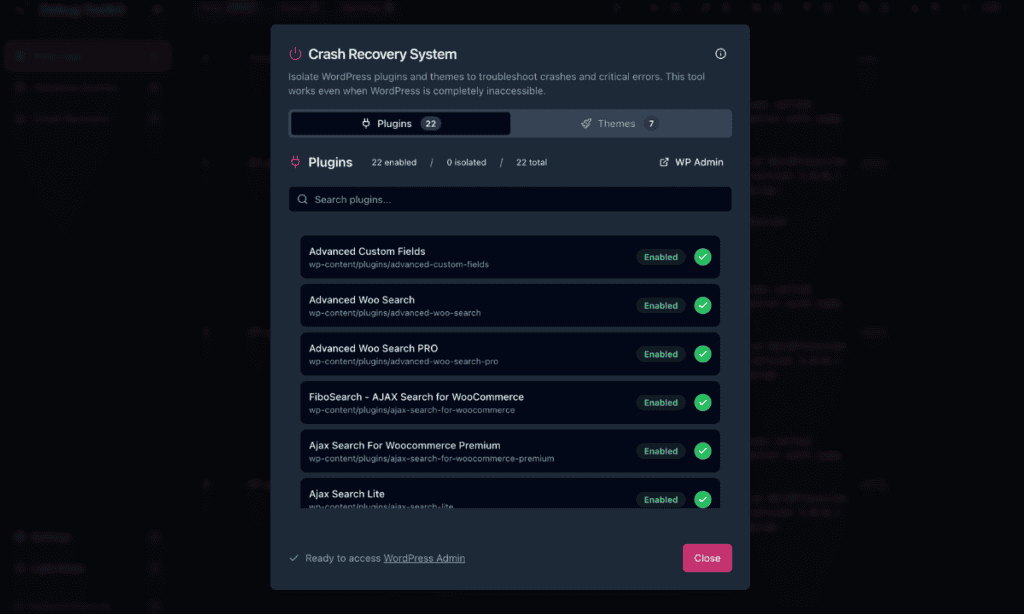
Scan the counter row at the top of the active tab. It displays three separate count badges showing your actual counts, for example, 2 enabled, 1 isolated, and 3 total
A WP Admin link on the right opens the corresponding wp-admin page: wp-admin/plugins.php from the Plugins tab, or wp-admin/themes.php from the Themes tab, if WordPress is accessible.
Each list entry shows the component name, its directory path, and a status badge: Enabled (green) or Isolated (amber). Use the search bar to filter by name on sites with many plugins.
If you know which plugin or theme triggered the crash, select it and isolate it. If you don’t know the cause, isolate all plugins and use the binary search procedure:
✅ What You Should See: The isolated component’s status badge changes to Isolated (amber), and an alert banner appears below the search bar: “1 plugin is currently isolated. WordPress cannot access this plugin until restored.”
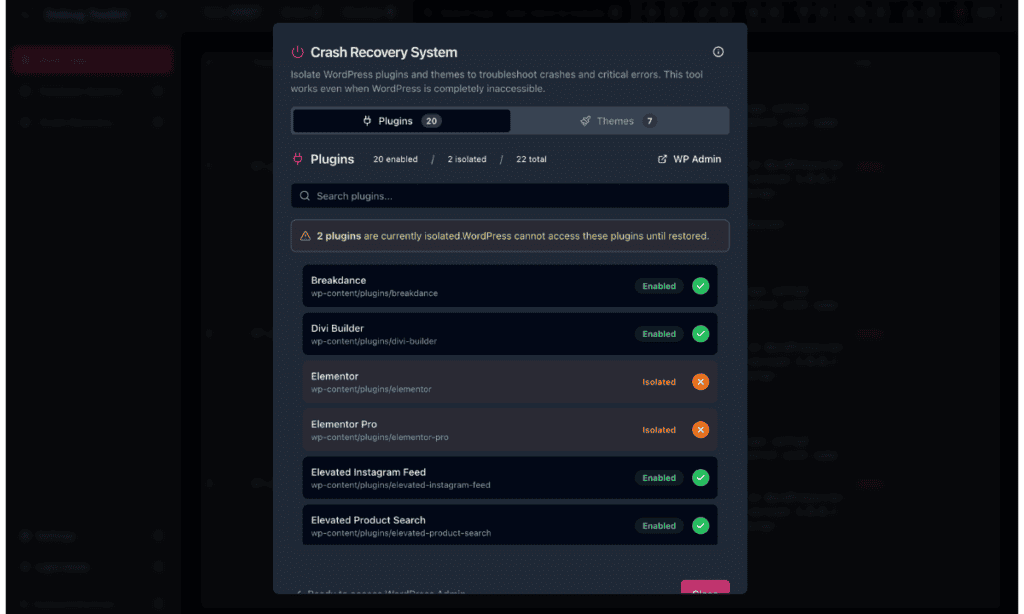
Open your site in a new browser tab. If it loads, the isolated component was responsible for the crash.
🔀 Decision Point: If the site still does not load after isolating all plugins, check whether the active theme or a drop-in file is the cause. Themes can be isolated from the Themes tab. Drop-in files such as db.php and object-cache.php cannot be managed through Crash Recovery. See Limitations below.
Switch to the error log view in the Viewer. The log entry for the crash shows the file path, line number, and error message. The file path identifies the responsible plugin or theme directory, which confirms your diagnosis before you apply a fix or contact a developer.
Address the underlying issue by either updating the plugin, contacting the developer, replacing the component, or removing it entirely. Then restore each isolated plugin or theme from the Crash Recovery panel. Monitor the error log after each restore. If a restore triggers a new error, re-isolate that component immediately and continue your investigation.
✅ What You Should See: After all components are restored, the counter row shows no isolated items, and the alert banner disappears.
Isolating a plugin renames its directory but does not remove the plugin’s entry from the active_plugins option in the WordPress database. When wp-admin loads again after a successful recovery, WordPress detects the missing directory and automatically deactivates the plugin record. You do not need to edit the database manually at any point.
Plugins stored in wp-content/mu-plugins/ load unconditionally regardless of what their directory is named. The rename mechanism has no effect on MU-plugins. To address an MU-plugin that is causing a crash, you need FTP, SSH, or direct access via your hosting control panel.
Drop-in files such as db.php and object-cache.php are individual PHP files, and not directories. Crash Recovery operates only on directories and cannot rename or move individual files. Access a problematic drop-in directly via FTP, SSH, or your hosting file manager.
The crash is likely caused by the active theme, a must-use plugin, or a drop-in file. Switch to the Themes tab and isolate the active theme. If the site still does not recover, access your site’s server directly to address the MU-plugin or drop-in. Crash Recovery cannot manage either of those component types.
A stale browser cache or WordPress transient cache may be displaying an outdated state. Clear your browser cache and reload wp-admin. If the plugin still appears active incorrectly, deactivate and reactivate it through wp-admin › Plugins to force a fresh database write.
No. Crash Recovery only renames directories. Isolating a plugin appends -dbtk-disabled to the directory name. Restoring it removes the suffix and reverts to the original name. This way, plugin files are never modified or deleted at any point. The operation is completely reversible.
Yes. The Crash Recovery panel is accessible whenever the Viewer is accessible, regardless of WordPress’s health. You can use it to test plugin conflicts by isolating components without going through wp-admin, which can be useful for diagnosing intermittent issues on a functioning site before they escalate into a full crash.
The active_plugins entry in the WordPress database is not updated immediately when you isolate a plugin. When wp-admin next loads and detects the missing directory, WordPress automatically marks the plugin as inactive in the database. You do not need to manually edit the database at any point in the process.
WordPress Error Logs Viewer App Overview – Understand why Crash Recovery can reach your filesystem when WordPress can’t load a single line of code.
Error Logs Viewer Architecture – See exactly how the Viewer API reads and renames directories on the server without touching WordPress.
WordPress Recovery Mode Integration – Learn what happens to the WordPress recovery email when WPDT intercepts it, and how to get a direct viewer link into that email.
