
The WP Debug Toolkit (WPDT) Viewer App installs as a directory in your web root. By default, that directory is named wpdebugtoolkit, making the viewer accessible at https://yoursite.com/wpdebugtoolkit. To change it, navigate to WP Debug Toolkit › Settings, open the Viewer Settings tab, enter a new directory name in the Viewer URL field, and save. Changing the URL is a cosmetic change and has no effect on the viewer’s security.
After the Viewer App is installed, WPDT creates a wpdebugtoolkit directory in your web root. The viewer is accessible at the following URL, where example.com is your domain:
https://yoursite.com/wpdebugtoolkit
The wpdebugtoolkit directory sits in your web root alongside wp-content/, wp-admin/, and other WordPress core directories, and not inside WordPress itself.
Navigate to WP Debug Toolkit › Settings and select the Viewer Settings tab.
Expand the Viewer URL accordion item. The field displays your current directory name with a default of wpdebugtoolkit.
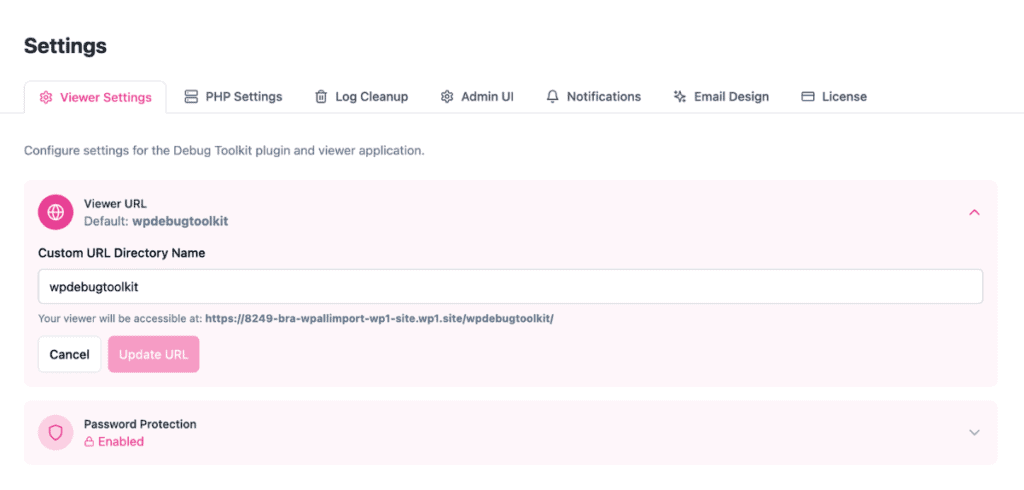
Type your new directory name into the field. Names must follow the rules outlined in the next section below.
Click Update URL. WPDT renames the viewer directory in your web root to the new path. Your viewer files, configuration, and password carry over automatically. If the rename operation fails verification, WPDT rolls it back, and the old URL remains active.
✅ What You Should See: The old URL returns a 404 immediately. The viewer loads at the new URL. Update any bookmarks, shared links, or internal documentation that referenced the old address, and notify any team members who access the viewer directly.
Directory names may contain lowercase letters (a–z), numbers (0–9), hyphens (-), and underscores (_). WPDT automatically lowercases any uppercase letters on save, so MyLogs becomes mylogs. The maximum length is 50 characters. WPDT blocks WordPress core directory names: you cannot use wp-admin, wp-content, or wp-includes.
Valid examples: debug-viewer, my-logs, site-monitor.
Changing the viewer URL does not make the Viewer App more secure. An attacker who discovers your custom directory name faces exactly the same protection stack as one who knows the default. The URL is simply a label for a directory and not a credential.
The Viewer App’s real security comes from its built-in access controls, which apply regardless of what the directory is named. These controls include:
WPDT’s security model does not depend on the viewer URL being unknown.
The viewer URL is stored in the WordPress option debug_toolkit_viewer_custom_url and is always managed through the Viewer URL field in WPDT’s settings UI. There’s currently no PHP filter hook in the codebase for overriding the viewer URL programmatically.
If you need to set it outside the UI, such as during an automated deployment, update the option directly via WordPress’s update_option() before the viewer is installed, then install or reinstall the viewer through the WPDT settings page so the directory is created at the correct path.
No. The error log file is stored separately from the viewer directory, typically at wp-content/debug.log or a custom path you have configured. Changing the viewer URL moves only the viewer application itself. The log file location is unchanged.
No. Entering a new name in the Viewer URL field on the Viewer Settings tab and saving it triggers an automatic filesystem-level directory rename. Your viewer files, configuration, and password are preserved through the move. If you need to completely reinstall the viewer for an unrelated reason, you can do that separately from the same settings page.
Managing the WordPress Error Logs Viewer App – If you change the URL and the viewer stops loading, this is where to go. Covers reinstalling, repairing, and removing the viewer directory without losing your password or configuration.
WordPress Error Logs Viewer Authentication and Security – What actually triggers the 24-hour lockout, how session IP binding works, and what to do when a teammate gets locked out.
