
WP Debug Toolkit’s Site’s Health page (WP Debug Toolkit › Site’s Health) has two sections: a WordPress-core health overview at the top, and seven debug-specific checks below it. The debug checks surface configuration problems affecting your debug constants, log permissions, and Viewer functionality, and give you direct actions to fix common issues without leaving wp-admin.
Navigate to WP Debug Toolkit › Site’s Health. The page has two sections: a WordPress-core health overview at the top, and seven debug-specific checks below it. A Run Health Check button in the upper right refreshes both sections.
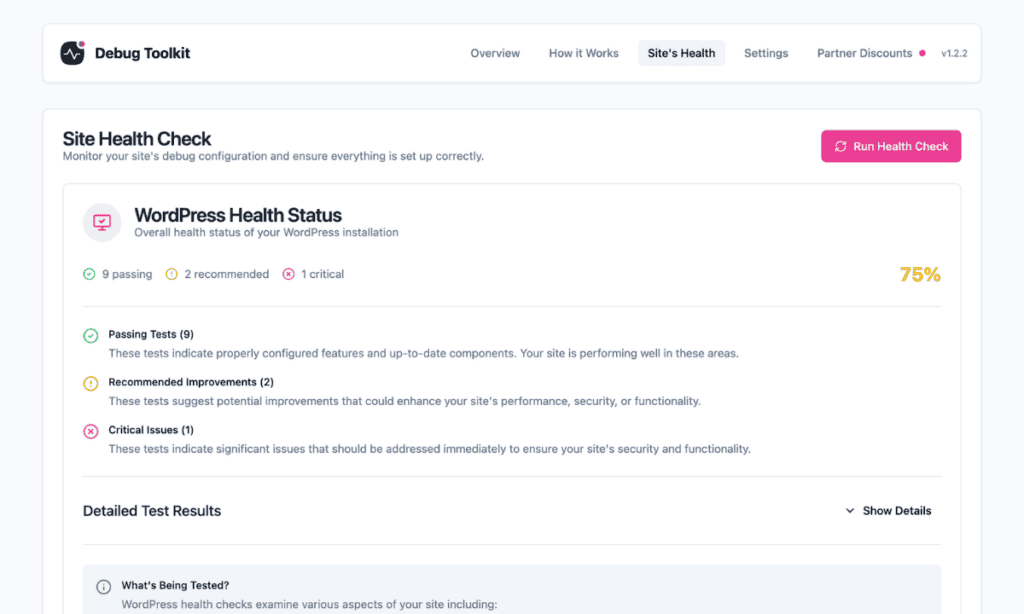
✅ What You Should See: The WordPress-core overview displays a health percentage score and three grouped counts for passing, recommended, and critical results, calculated entirely from the 12 WordPress-core checks. Below this, a separate grid of seven cards shows the debug-specific checks, each with a colored status badge and, where applicable, a Fix Permissions or Test Write Access button. A red debug card does not change the percentage or the critical count above it.
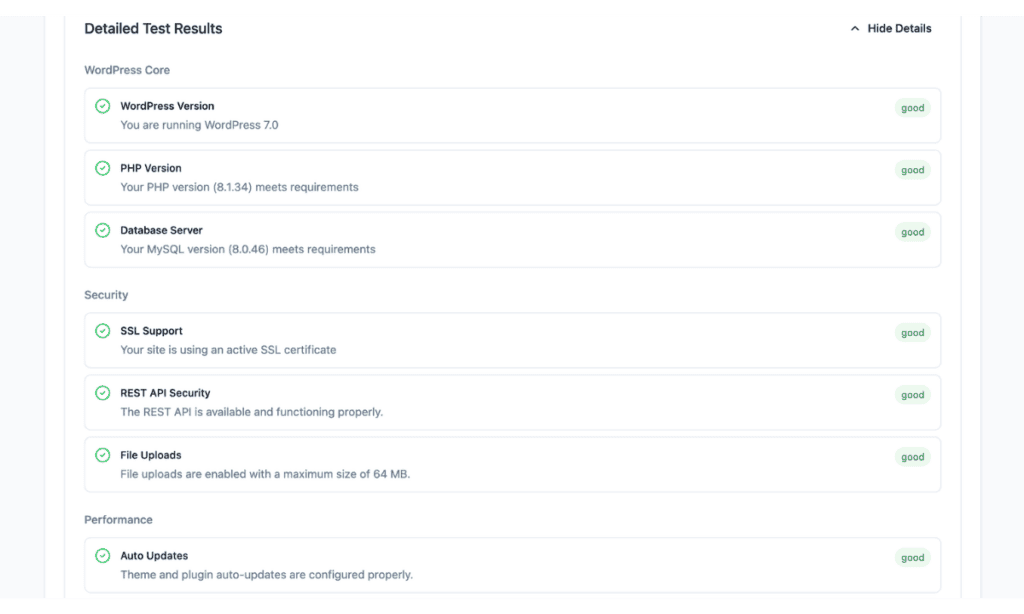
The top section reports on 12 checks WordPress runs against your site’s core configuration, grouped into four categories:
Each check contributes to the percentage score and the passing, recommended, and critical counts shown above. These results are independent of the seven debug-specific checks below; a failing WordPress-core check does not affect the debug checks, and vice versa.
WPDT runs seven checks covering your debug configuration and file permissions. These seven checks are independent of the WordPress-core overview above them. A red or amber debug card does not change the percentage or the counts in the summary.
WP_DEBUG is enabled. On production environments, a critical result appears if debug mode is active. On staging and development environments, a warning appears if debug mode is disabled.WP_DEBUG_LOG is enabled and that the log file path is writable by the PHP process.WP_DEBUG_DISPLAY is enabled. On production environments, a critical result appears if error display is active, since this exposes internal paths, database details, and code structure to visitors. On staging and development environments, a warning appears instead.debug.log is writable by the PHP process and that its permissions aren’t too open. A non-writable file prevents WordPress from appending new errors. Permissions looser than 644 also trigger a critical result, since an overly permissive log file can expose error details to other processes on the server.wp-config.php is writable by the PHP process. If the file is read-only, WPDT attempts to temporarily elevate its permissions when you save settings. The check only reports a problem if that elevation also fails.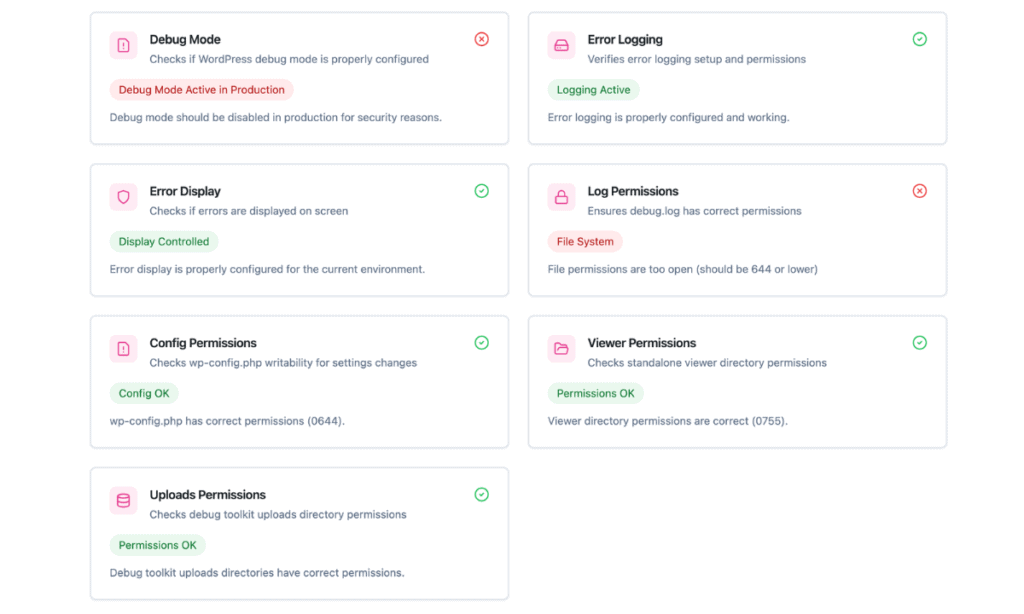
Red (critical) results indicate either a security risk or a condition that prevents a specific feature from functioning; the result description tells you which applies.
Amber (recommended) results do not block any feature but indicate a configuration that may cause problems over time.
For a failing Viewer permissions check, use the Fix Permissions action on the page. WPDT repairs the Viewer directory itself to 0755. Files inside the directory are checked but not modified. This action is not available when the check reports a missing directory; in that case, reinstall the Viewer App instead.
The Test Write Access button appears when the Config permissions check passes with a note that wp-config.php is read-only but elevatable: WPDT has confirmed it can temporarily chmod() the file when saving settings.
Use this button to confirm that safety net is working before you need it. WPDT runs is_writable() against wp-config.php and tests whether chmod() can elevate permissions. This is a non-destructive test; WPDT does not write to the file.
If the Config permissions check instead fails red, with a “Config Not Writable” or “Config Not Found” result, Test Write Access is not available. Contact your hosting provider to correct the file’s ownership or permissions directly.
For all other failing checks, the result description identifies the specific file or setting involved. Navigate to the relevant WPDT page, such as WP Debug Toolkit › Overview › Error Logging, for debug constant issues, and apply the fix there.
Clicking Run Health Check, or simply reloading the page, always pulls current results so you do not need to wait after making a change.
| Status | What It Means |
|---|---|
| Green (good) | The setting or permission is correctly configured, and no action is needed on your end. |
| Amber (recommended) | The configuration is not optimal and could cause problems, but no WPDT feature is currently broken. You should address these to prevent future issues. |
| Red (critical) | Indicates either a security risk or a misconfiguration that prevents a specific feature from functioning. Check the result description to understand which applies and what to fix. |
How to Automatically Enable WordPress Debug Mode – Toggle WP_DEBUG and related constants on or off directly from wp-admin, without touching wp-config.php.
How to Safely Modify wp-config.php – Find out how WPDT writes to wp-config.php and what to do when the Config permissions check comes back red.
Permission Elevation – Learn what happens when Test Write Access fails and how WPDT handles requests for elevated file permissions.
